


Fluent Support 2.1.0: Agent Groups, Agent Signatures, and Cloud File Storage

By Shahjahan Jewel
April 9, 2026
Last Modified: April 9, 2026


Fluent Support 2.1.0 is here!
This is a feature-packed release with meaningful additions that help growing support teams work smarter, stay more organized, and handle files at scale.
We’ve introduced Agent Groups for structured team management, agent signature for a more personal touch, and cloud file storage support via Cloudflare R2 and Amazon S3.
So, what’s new in Fluent Support 2.1.0? Let’s explore the changes in this version.
Agent Groups
This is the headline feature of 2.1.0, and it’s one we know many of you have been waiting for.
If your support team is growing (or already large), managing agents as a flat list quickly becomes a bottleneck. You can’t easily route tickets, track performance by team, or bulk-assign work without some structure in place. Agent Groups solves all of that in one go.
You can organize your support staff into named teams, Billing, Technical, Sales, Default, or whatever makes sense for your business. From there, everything in Fluent Support becomes group-aware: ticket assignment, filters, workflows, and reports.
Here’s everything that comes with this feature.
Create Agent Groups
Head over to Support Staff → Add Group to create your first group.
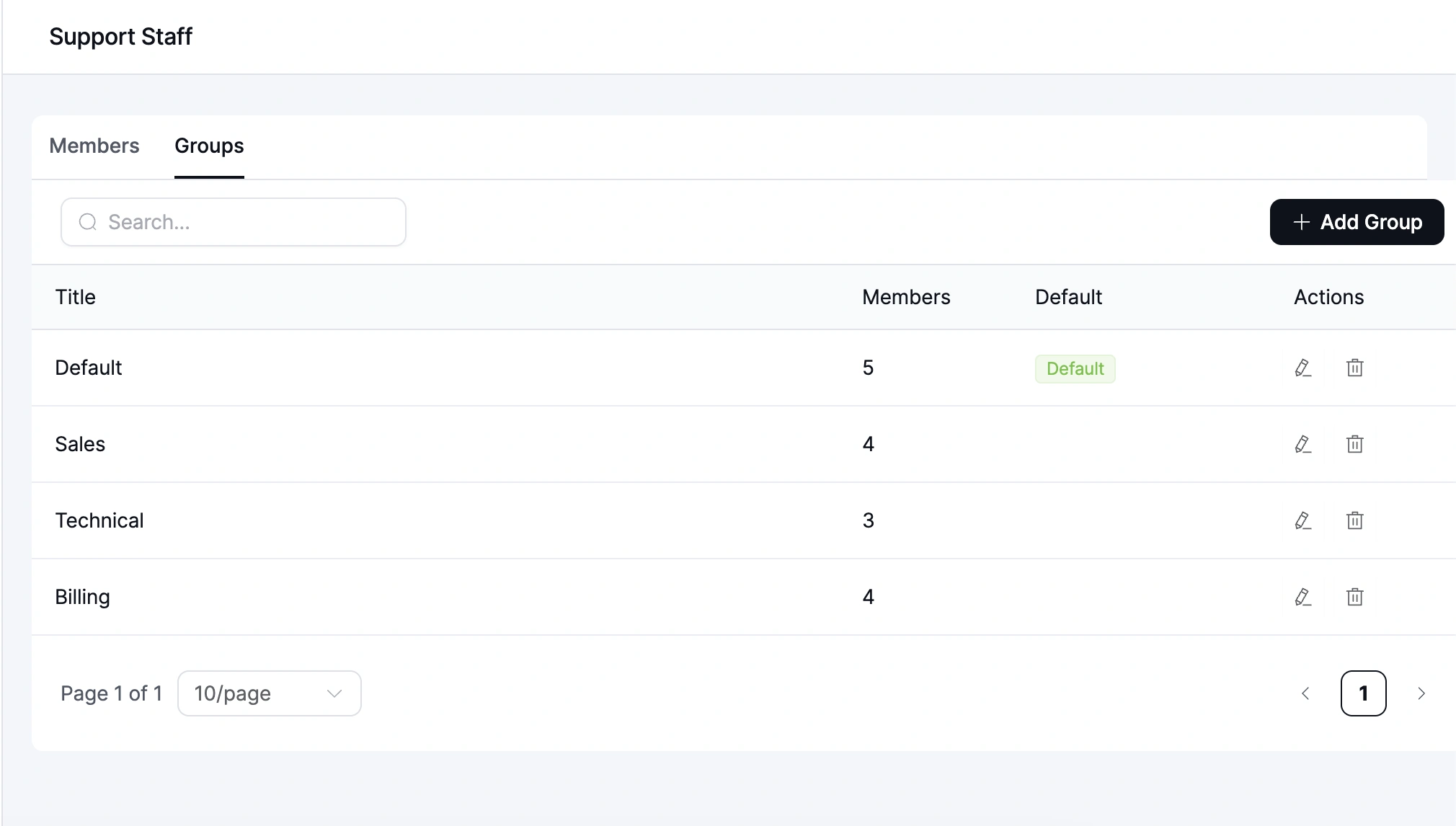
Give it a title, add a description, assign agents, and then add the group. Agents can belong to one group or multiple; it’s flexible.
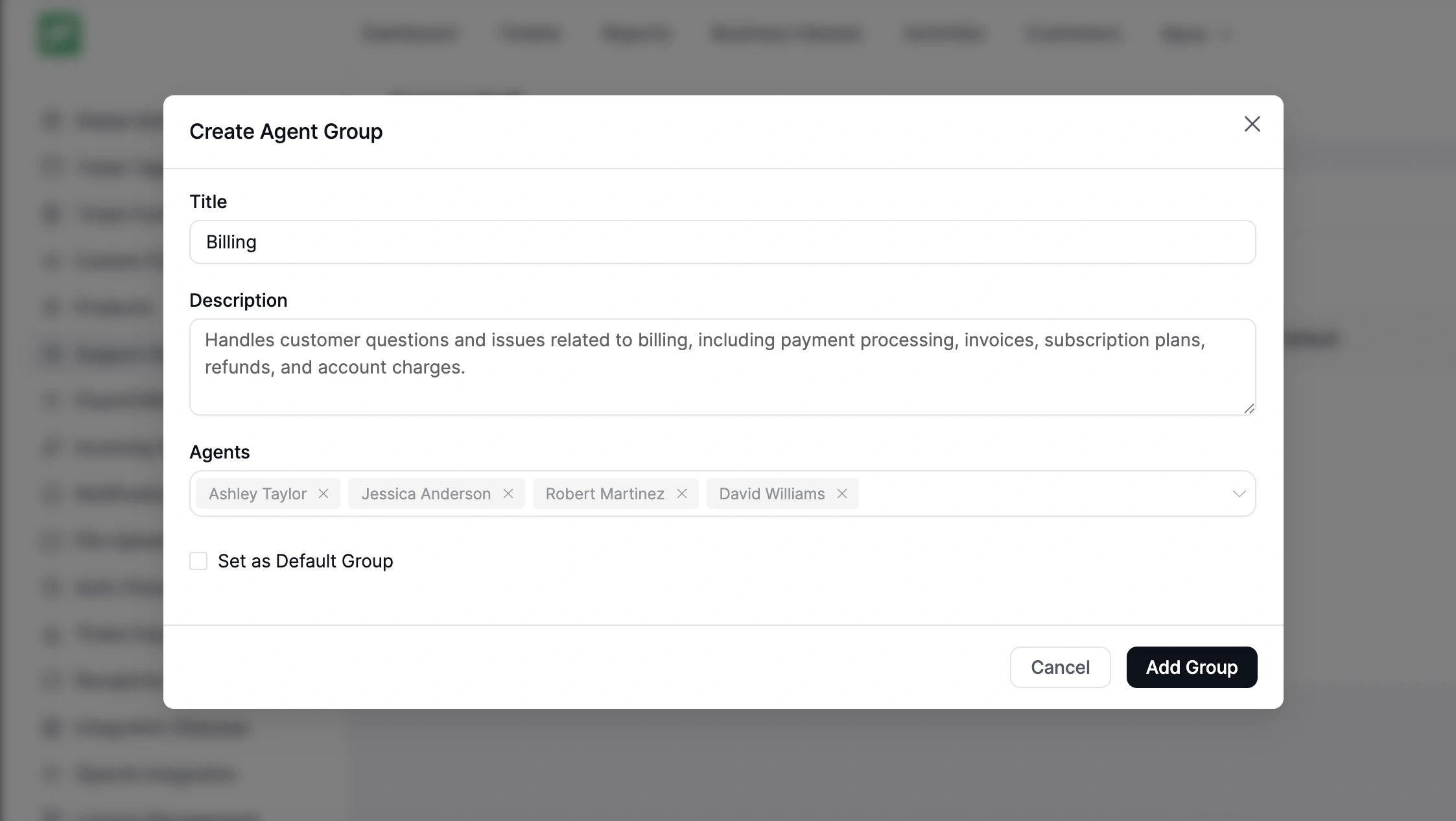
Default Group
You can also designate one group as the default.
When new agents are added to Fluent Support, they’re automatically placed into this group. So you don’t have to organize every new hire manually.
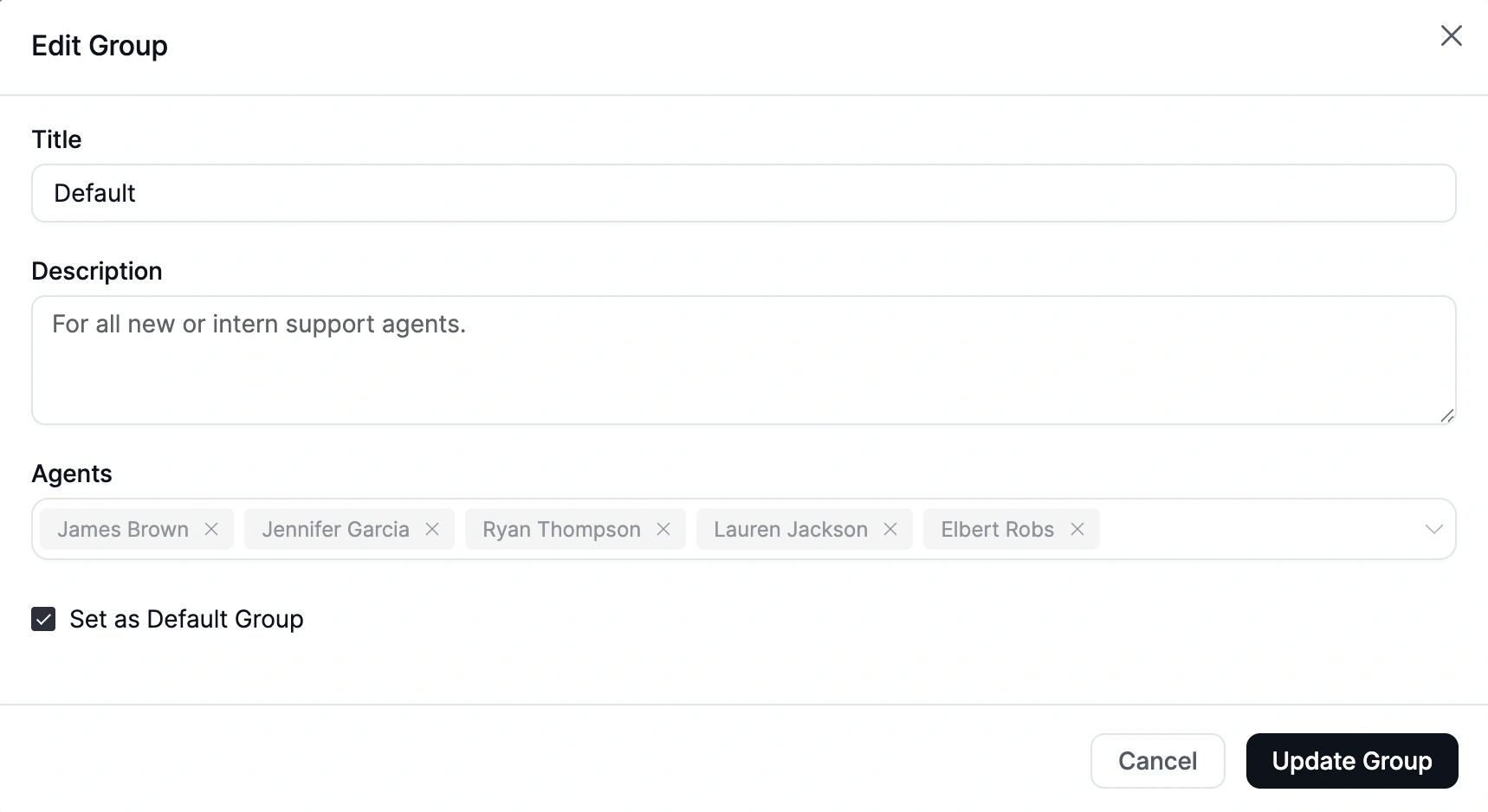
Group Column in Support Staff List
We’ve now added the Agent Groups list beside the members list in the Support Staff table. So, you can check which group or groups each agent belongs to, right in the list view.
Filter Tickets by Agent Group
The ticket list now includes an Agent Group filter. Select a group from the dropdown and instantly narrow the view to tickets handled by that team.
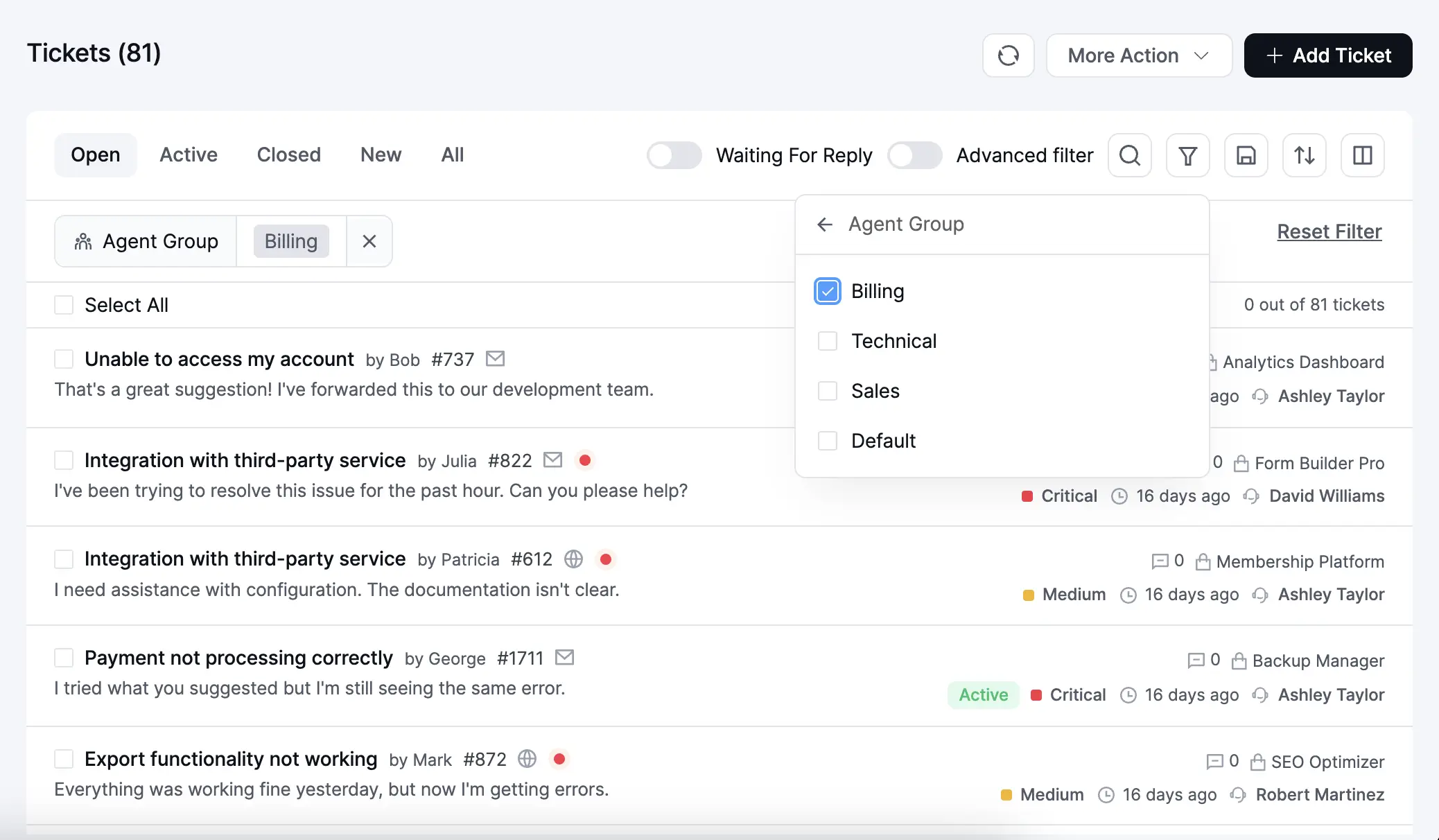
This works exactly the way you’d expect. Clean, fast, and without getting in the way of your existing filters.
Bulk Assign to Agent Group
Select multiple tickets and assign them to a group in one action.
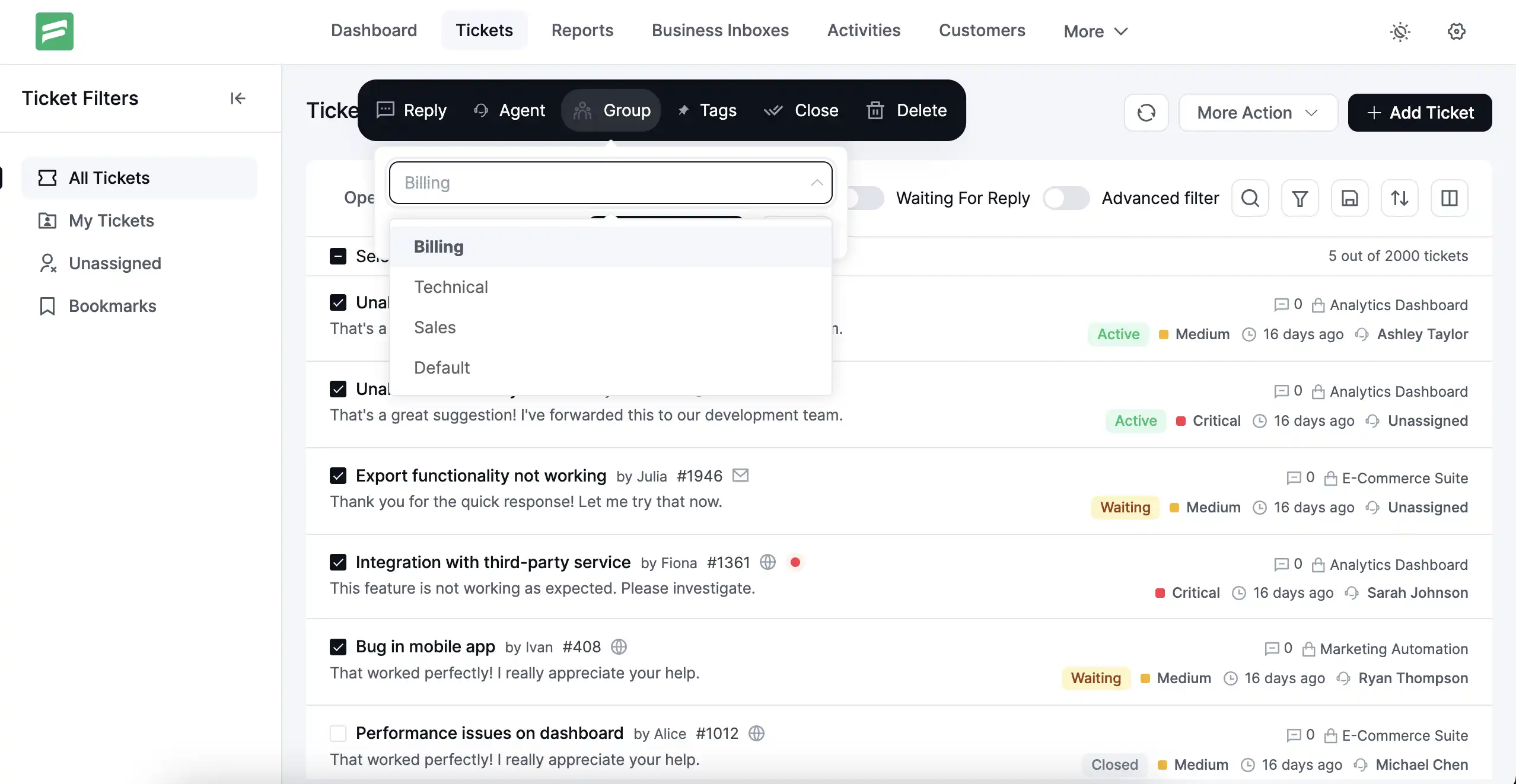
But don’t worry! The tickets are automatically distributed to the agent in the group with the fewest open tickets.
So, your work goes where it’s needed, without anyone manually figuring out who has capacity.
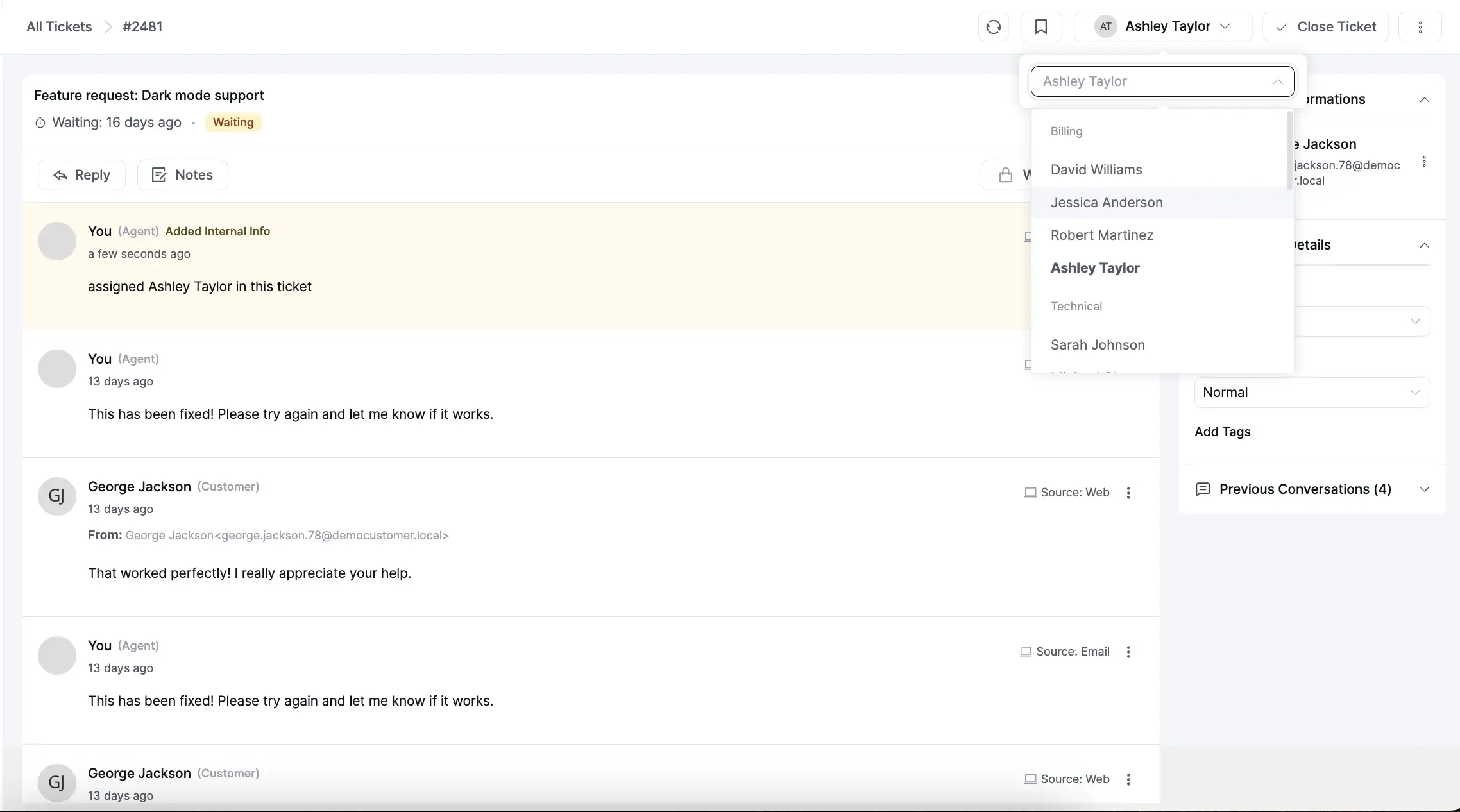
Grouped Agent Assignment
When assigning an agent to a specific ticket, agents are now displayed group-wise in the assignment dropdown.
Instead of scrolling through a flat list of every agent on your team, you’ll see agents neatly organized by group.
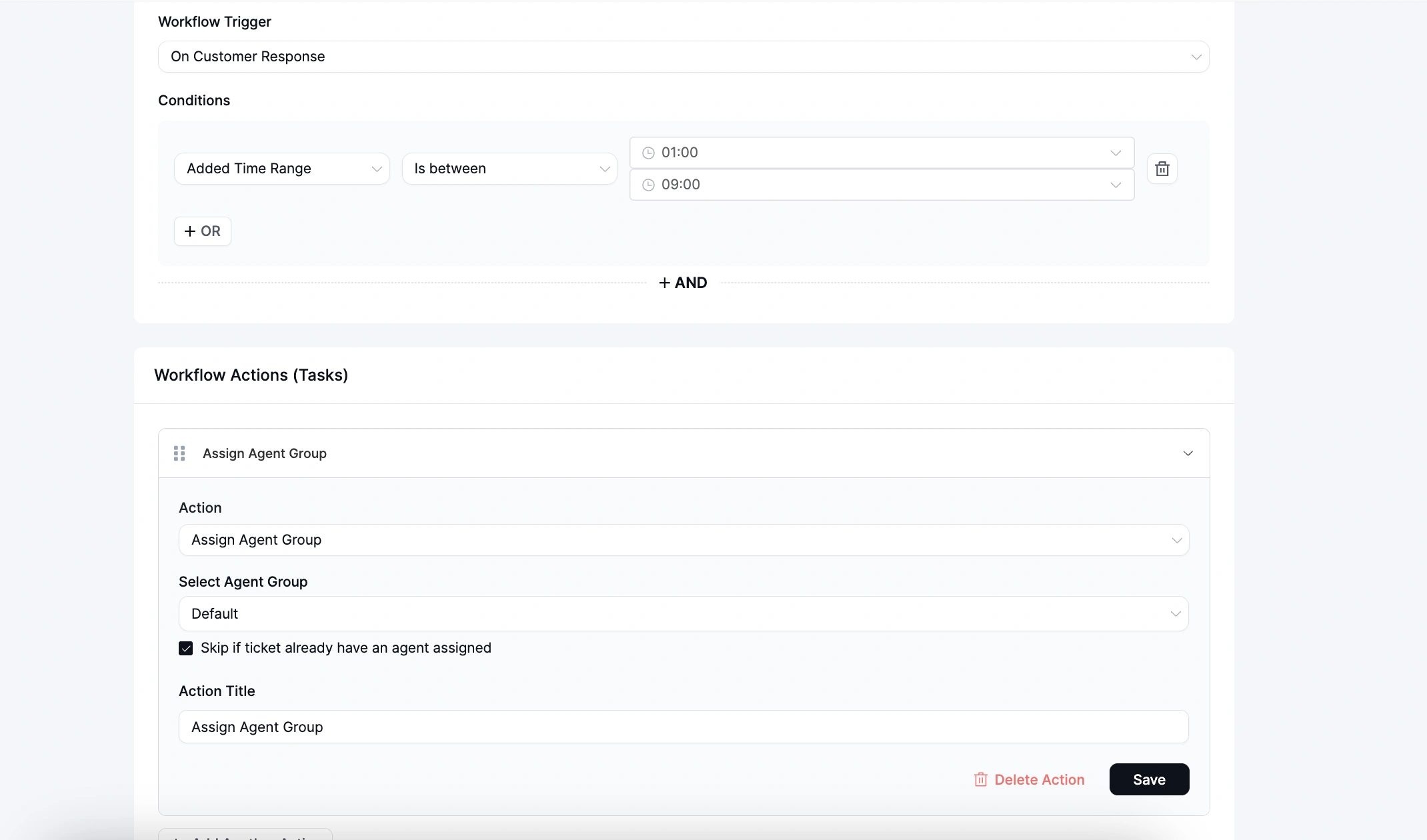
Workflow Action: Assign Agent Group
You can now use Agent Group as a workflow action.
Set up a trigger like “On Ticket Creation,” add a condition, and assign the matching ticket to a specific group automatically. The ticket goes to the agent in that group with the lightest workload.
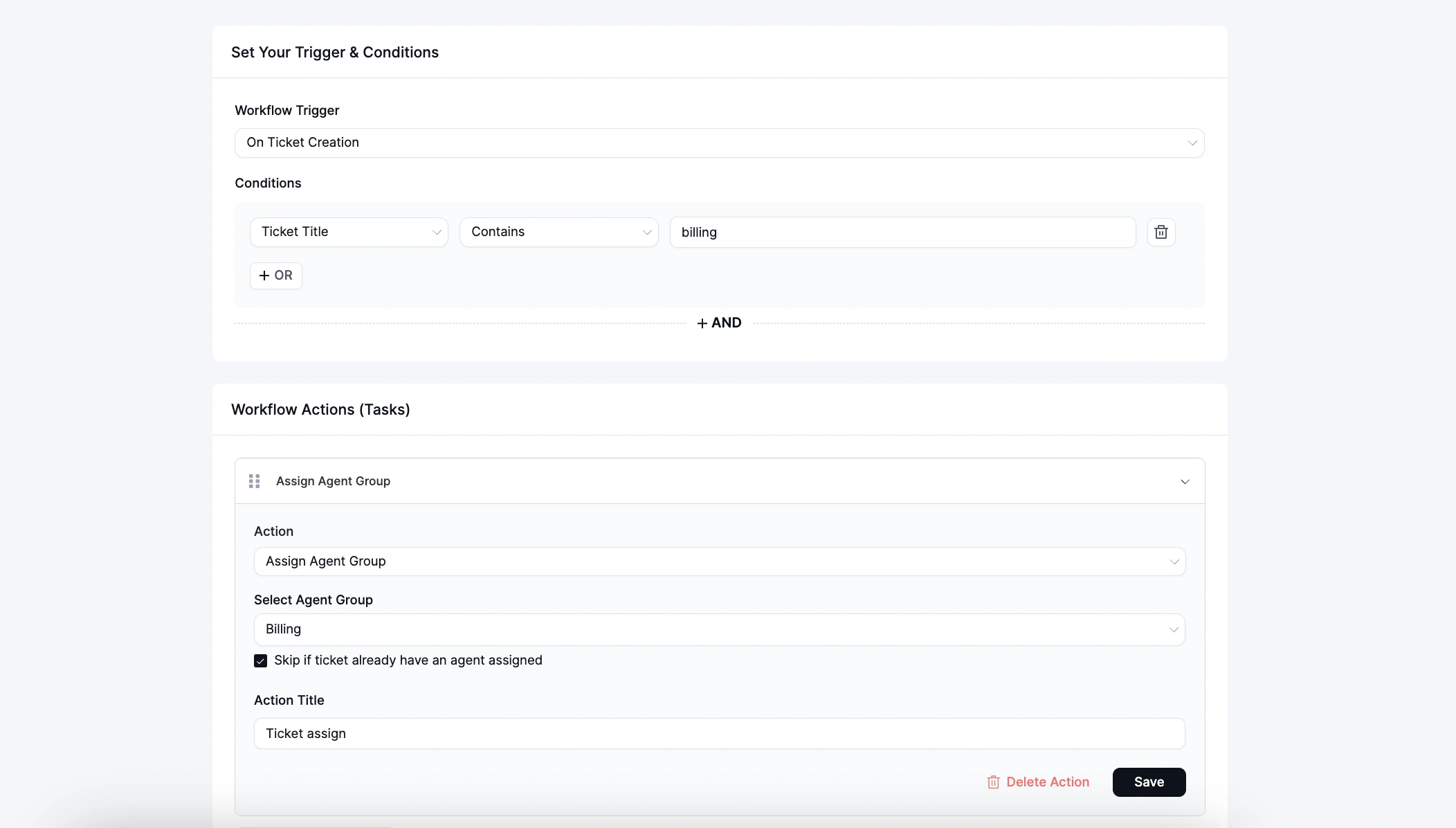
This is particularly useful for routing tickets based on keywords, products, or customer type without any manual intervention.
Workflow Condition: Agent Group
Agent Group is also now available as a workflow condition. This means you can build workflows that behave differently based on which group is handling a ticket.
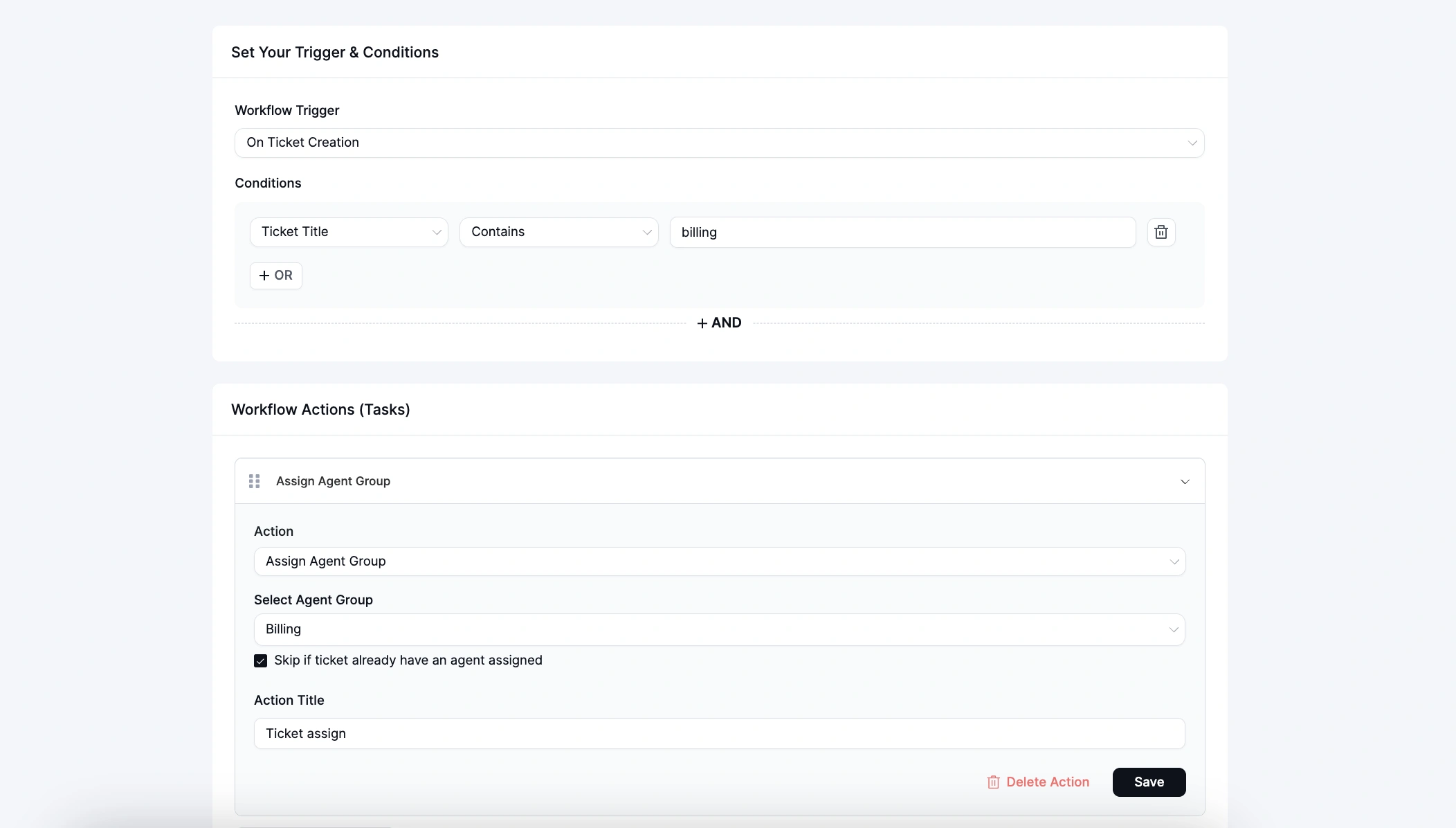
For example, sending a different auto-reply for Billing tickets versus Technical ones, or applying different time zones for different teams.
Agent Group Reports
The Reports section now includes a dedicated Agent Groups Reports view.
You can filter by group and date range to view New Tickets, Active Tickets, Closed Tickets, Responses, and Open Tickets, broken down by group.
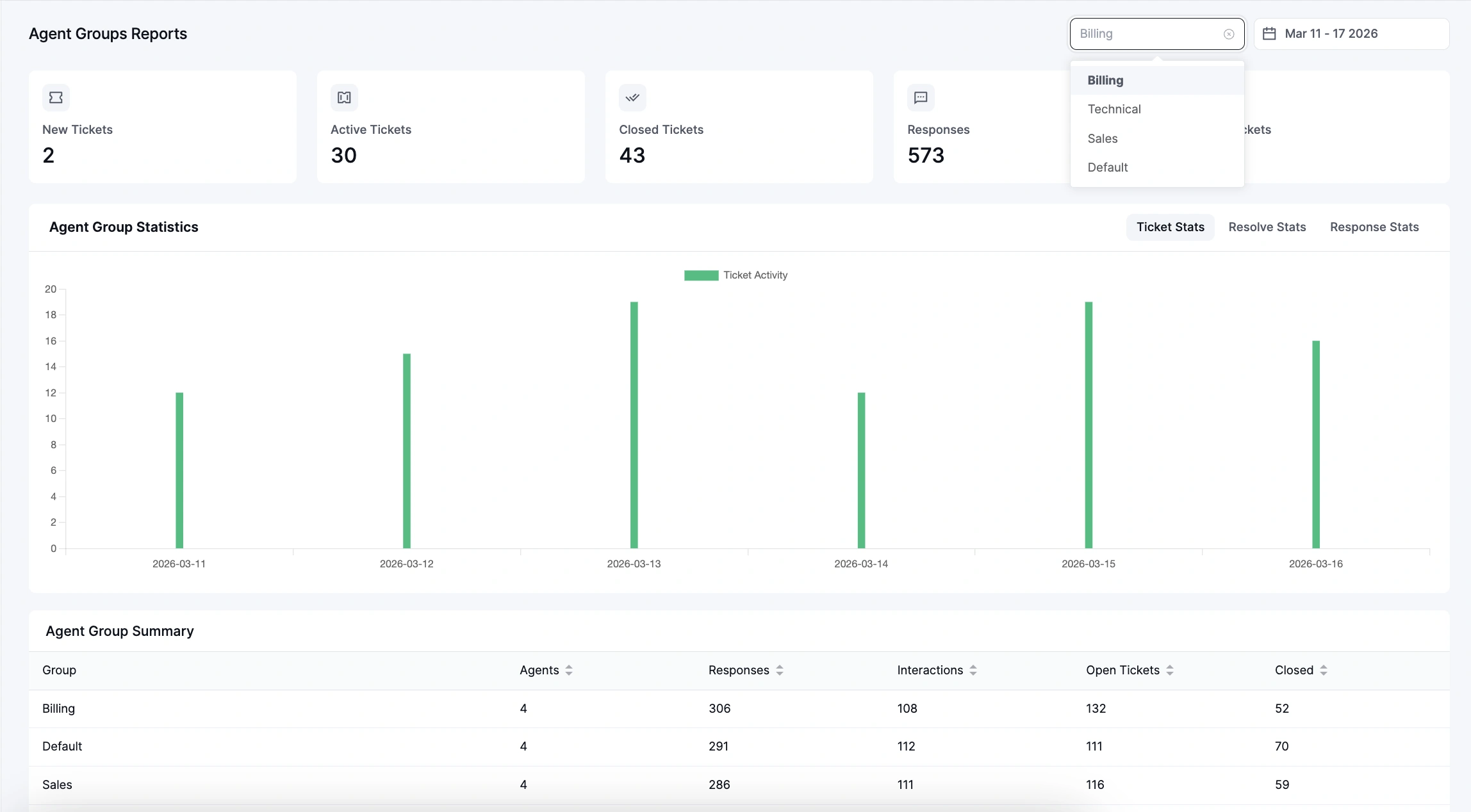
The Agent Group Summary table at the bottom gives you an at-a-glance view across all groups. So you always know how each team is performing.
Now let’s talk about Agent Signature!
Agent Signature
Agents can now have their own personalized email signatures, set and managed directly from their agent profiles.
This is a small touch that makes a meaningful difference in how professional and consistent your support replies feel to customers. Instead of every reply ending the same way, each agent can sign off in their own voice.
How it works
Go to Support Staff, click the edit icon for any agent, and scroll down to the Agent Signature section.
Check “Enable signature for this agent,” then compose the signature using the built-in rich text editor. You can add formatting, links, and media.
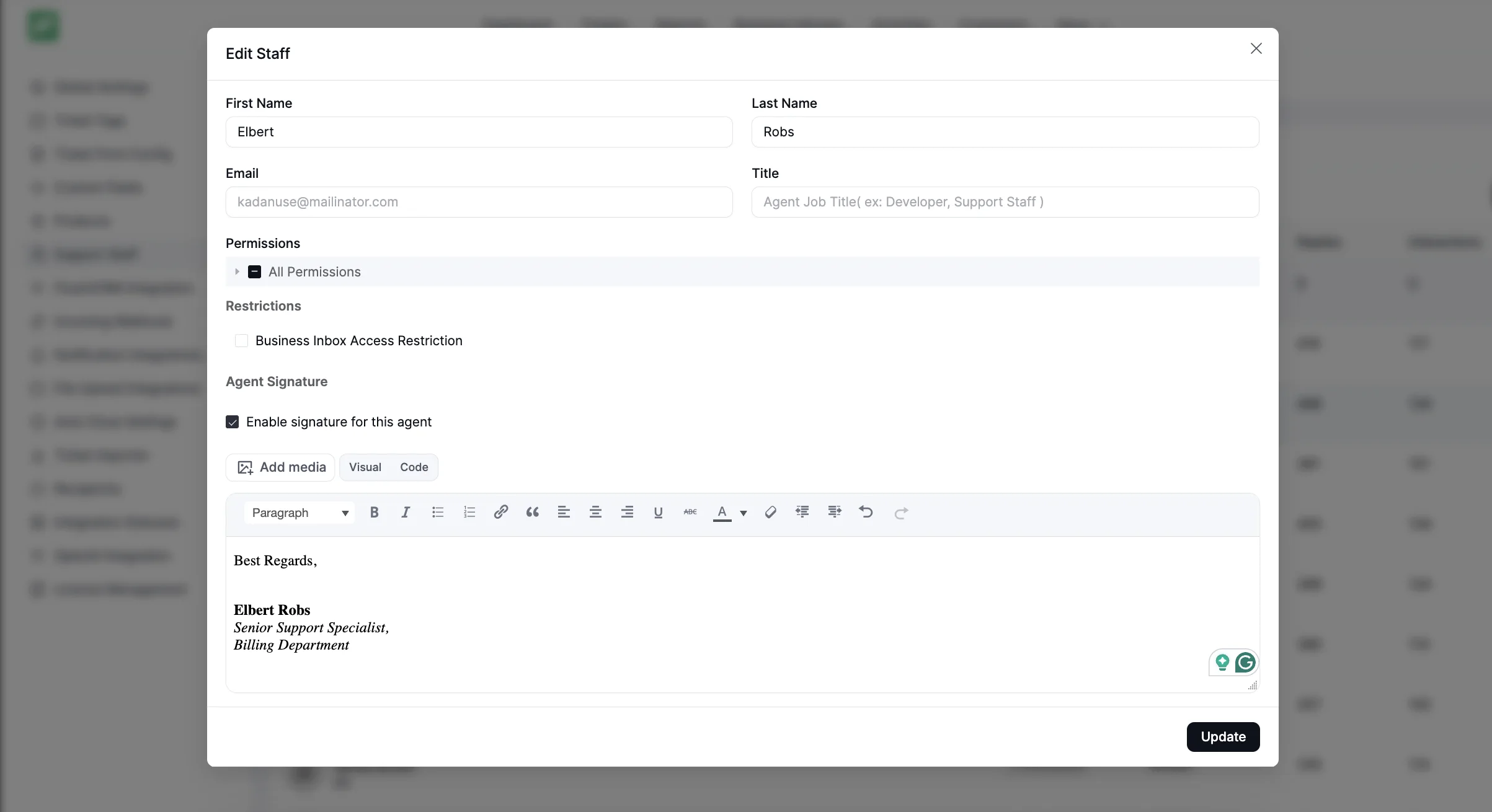
Hit Update, and that agent’s signature will automatically appear on their outgoing replies.
Agent-Initiated Tickets
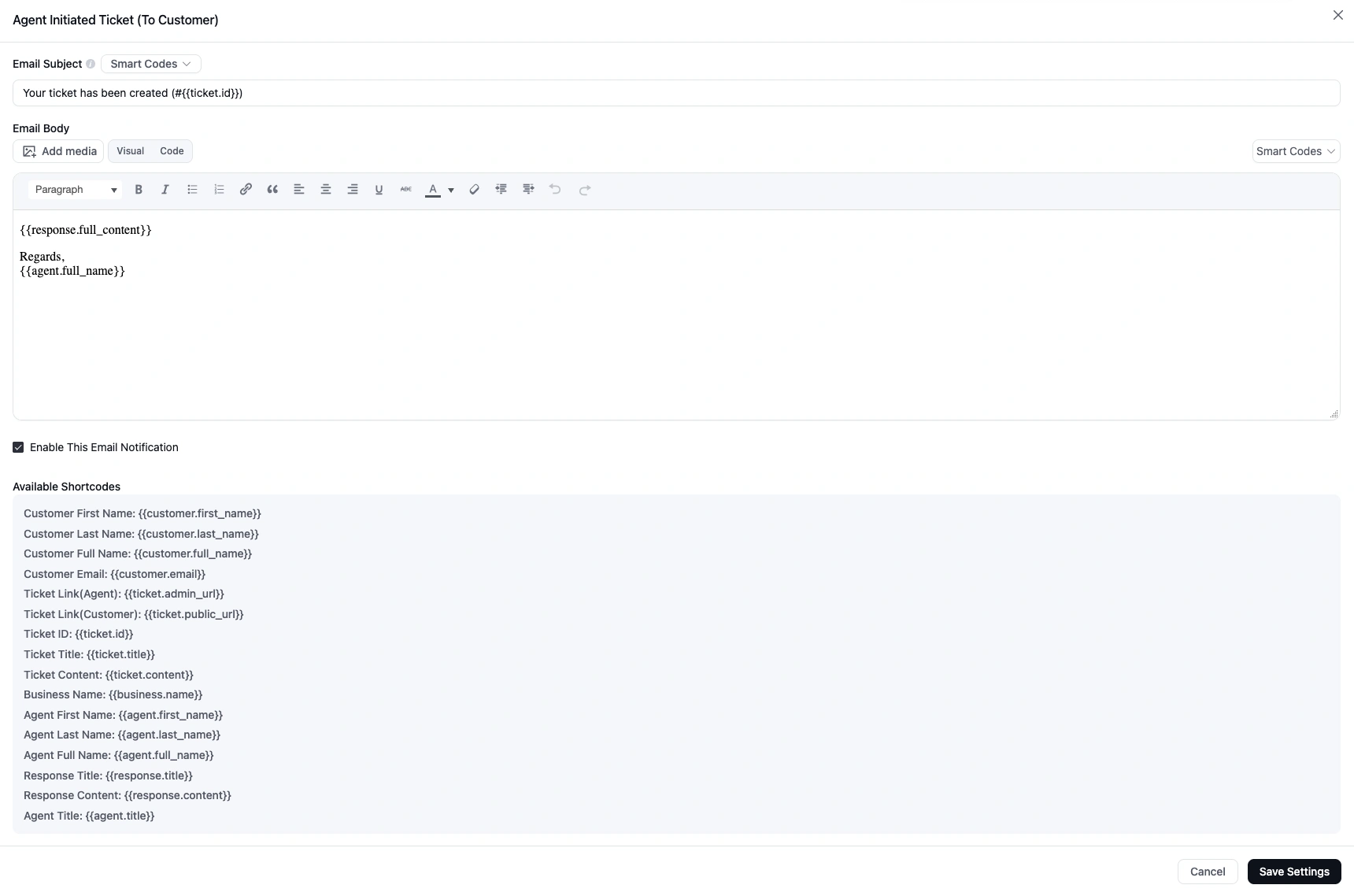
Agents can now create tickets on behalf of customers directly from the support dashboard. Once the ticket is submitted, the customer automatically receives an email notification with the ticket details.
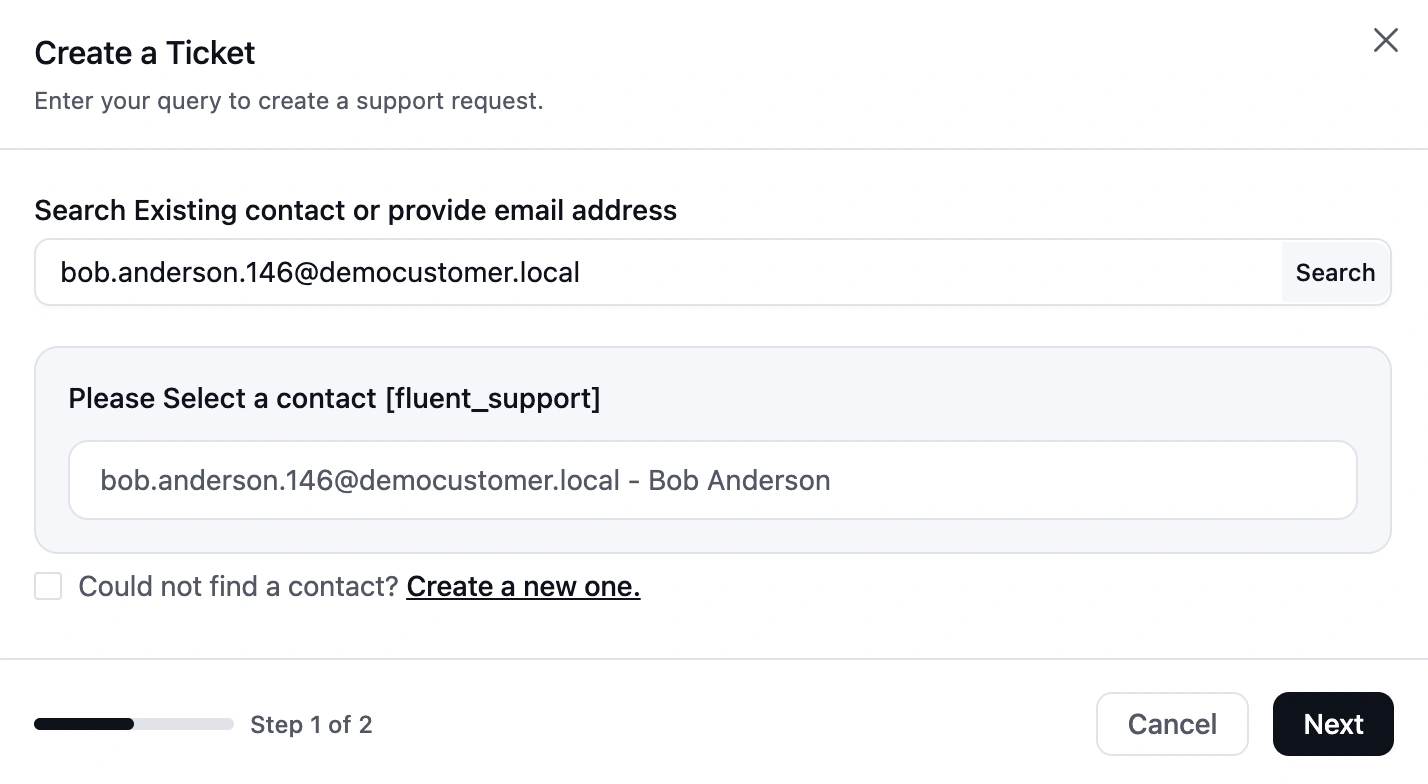
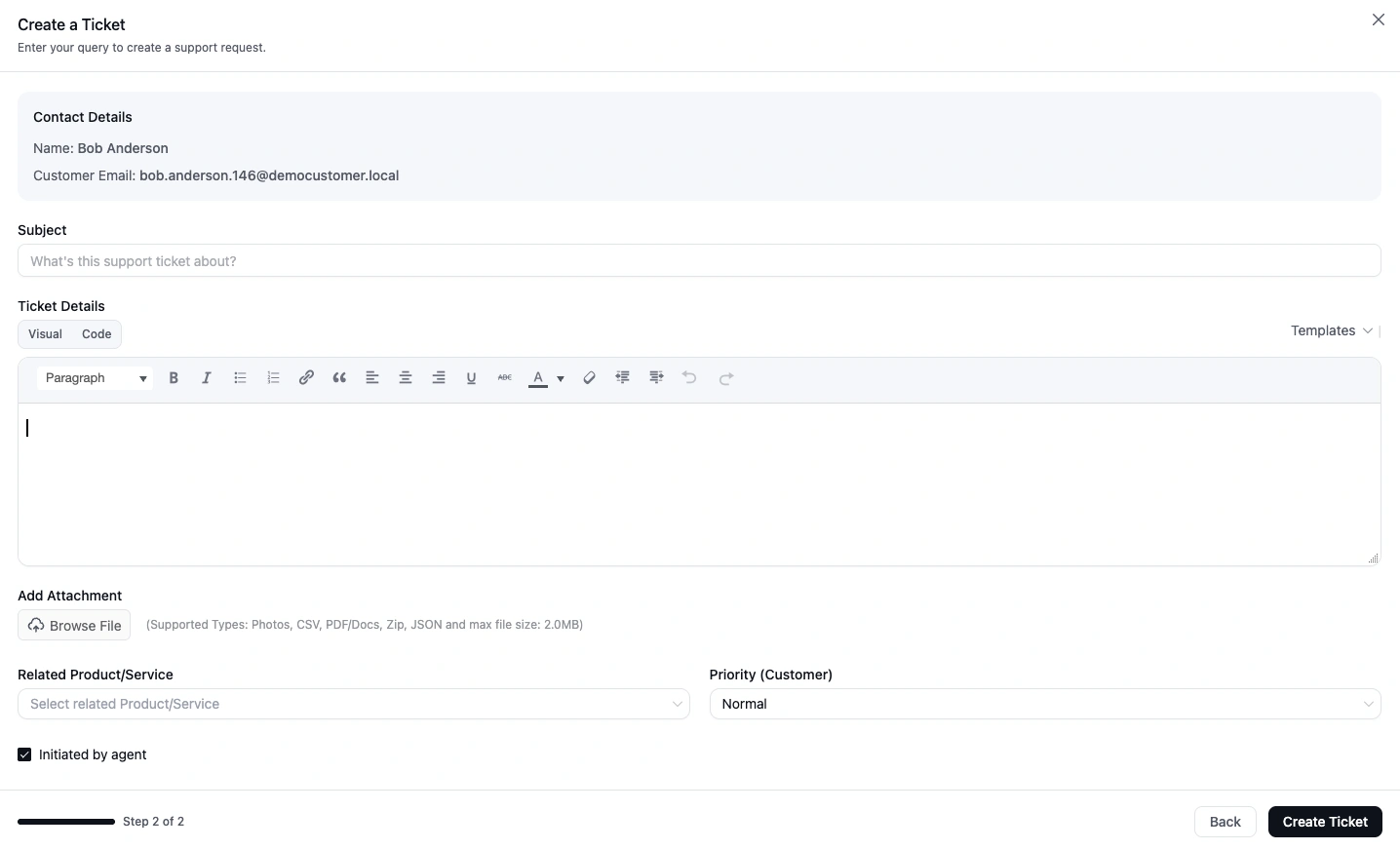
A new email template has been added specifically for this flow.
File Upload Integration: Cloudflare R2 and Amazon S3
Fluent Support now supports external cloud storage for file attachments through Cloudflare R2 and Amazon S3.
If you’re running a high-volume support operation, storing attachments directly on your WordPress server is not a long-term solution.
With this integration, all uploaded files can be offloaded to your own cloud storage bucket. This keeps your server lean, your uploads fast, and your storage costs predictable as you scale.
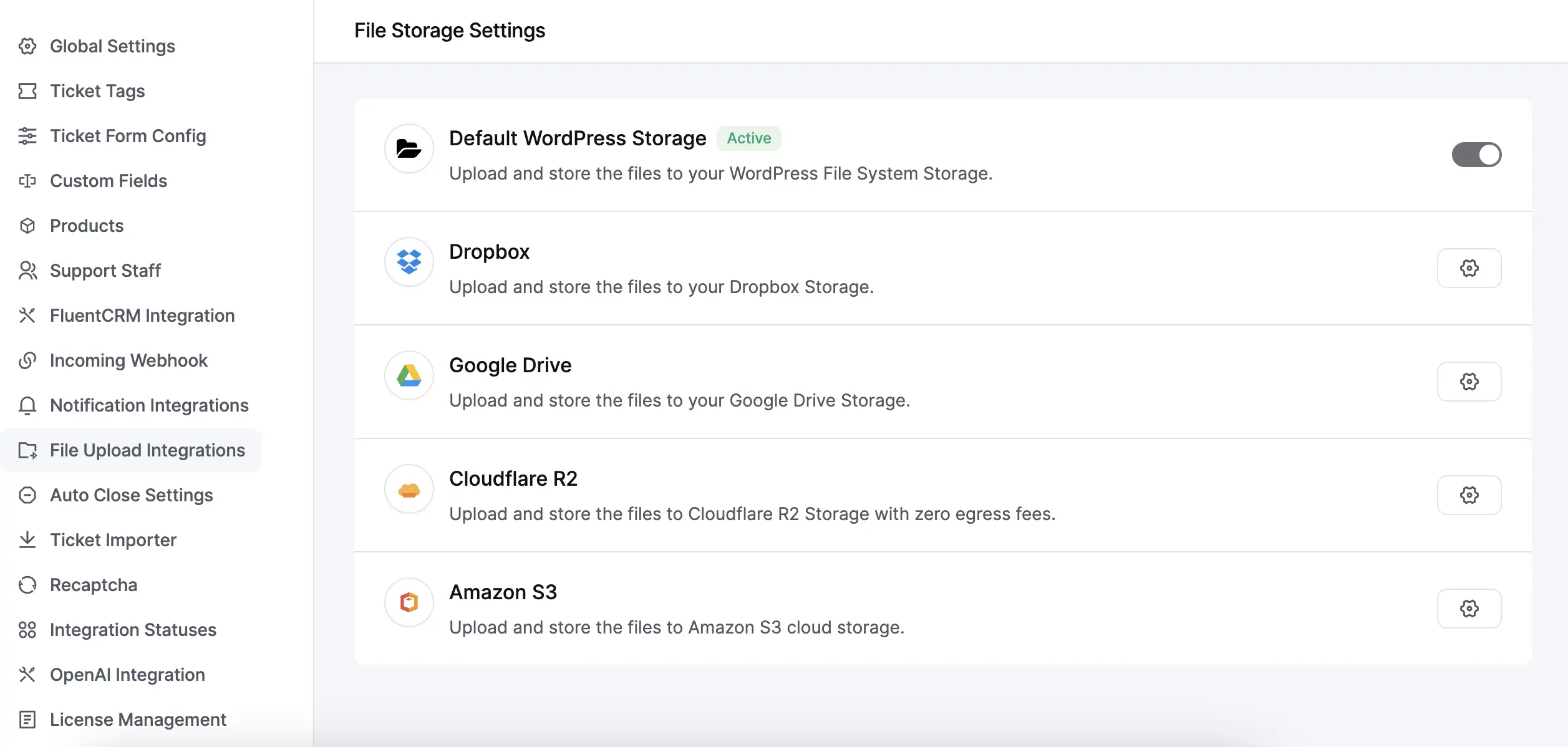
You can configure your preferred storage provider from File Upload Integrations inside Settings.
Dynamic Sidebar Widgets
Developers can now inject custom widgets into the ticket sidebar using a new hook-based system.
Widgets are registered via a PHP hook and can be powered by Vue components on the frontend. No core files need to be modified. The system handles placement and rendering automatically.
Full implementation details and code examples are available in the developer documentation.
Notification Control Filter Hook
Lastly, you have a new filter hook to control when notifications are sent programmatically.
php

apply_filters('fluent_support/should_send_notification', $shouldSend, $channel, $type, $ticket, $person);
Using this hook, you can suppress or conditionally allow notifications across any channel, like Email, Slack, Telegram, Discord, and WhatsApp (Twilio), based on your own logic.
Some practical things you can do with it:
Block all notifications for a specific channel, set quiet hours so no notifications fire overnight, suppress notifications for specific customers or ticket IDs, or stop customer-facing emails while keeping admin alerts intact.
You can add your filter to functions.php or a custom plugin. Full usage examples with code snippets are available in the developer documentation.
Improvements
FluentBot Integration Migrated to Production API:
The FluentBot integration has been updated to use the production API at dash.fluentbot.ai/api. Along with the base URL update, the following changes have been made:
- Endpoint updated from /chat/fs-completion to /chat/fs
- Payload field conversation_id renamed to chat_id
- Payload field human renamed to visitor
- Removed API key requirement
Security Improvements: This release includes security improvements to make Fluent Support more robust and better protected.
Query Optimization: We’ve optimized database queries across the plugin for better performance, especially noticeable on high-volume support operations.
Wrapping Up
Fluent Support 2.1.0 brings some genuinely useful structure to growing support teams. Agent Groups, in particular is a foundational feature. Once you have it, you’ll wonder how you managed without it.
As always, your feedback is what drives Fluent Support forward. Every request and suggestion we receive shapes what we build next. Keep them coming, we’re listening.
Update today and enjoy the improvements.
Happy supporting!
Start off with a powerful ticketing system that delivers smooth collaboration right out of the box.
Related Articles
How to Setup a Support Ticket System in WordPress?
Learn how to set up a support ticket…Fluent Support 2.4.0: Advanced Reports, AI Ticket Audit, and Portal Protection
Fluent Support 2.4.0 rebuilds reporting with a full…






Add your first comment to this post