
50+ Best Canned Response Examples & Templates for Customer Support

By Prosanjit Dhar
February 5, 2026
Last Modified: June 5, 2026


Your support agent opens a ticket. And, there’s another message says not working with zero context.
One agent spends 15 minutes asking for details. Another clicks a canned response (saved reply), then personalizes the draft in 30 seconds and moves on.
Which agent is doing better? Of course, you know who. One agent closes 12 tickets per day. And the other closes 40.
Canned responses are prewritten replies that help you to save time on those common support issues.
This guide shares 50+ canned responses (saved replies) templates for customer support teams. You also use it very easily if you are using Fluent Support for managing customer support.
What are canned responses?
Canned responses, also called saved replies or macros, are prewritten answer templates for your support agents to insert into tickets with one click.
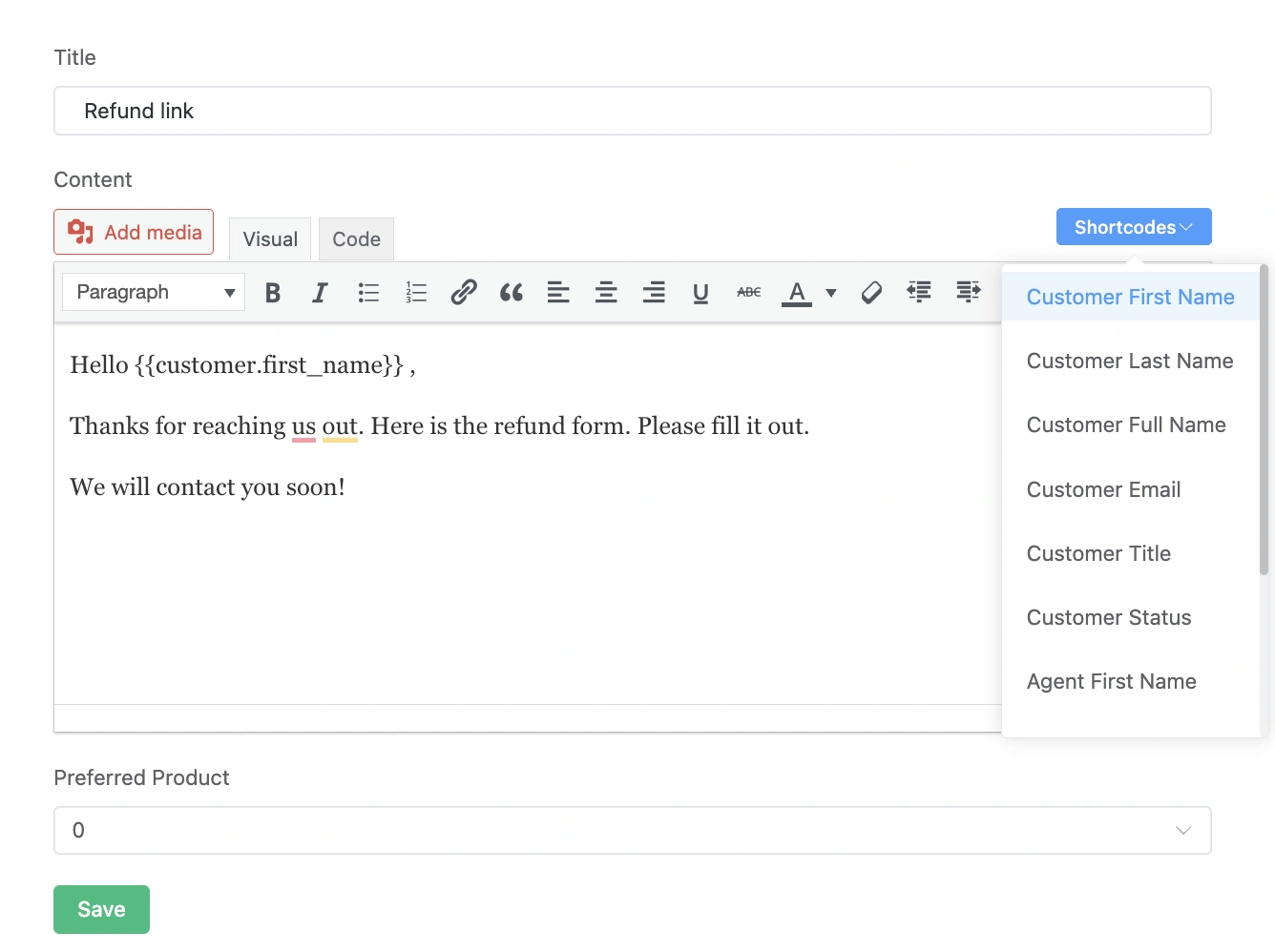
Unlike copy-paste responses buried in Google Docs, canned responses (saved replies) in Fluent Support:
- Live inside your helpdesk (accessible from the ticket box with one click)
- Maintain consistency (every agent gives the same accurate information)
- Use dynamic variables (auto-populate customer names, agent names, emails, etc.)
- Update centrally (edit templates once, all agents use the updated version)
Think of them as your support team’s playbook. When a customer asks, “How do I reset my password?” your agent doesn’t reinvent the wheel. They use the tested and approved response.
50+ canned response (saved reply) templates for customer support teams
Copy these canned response templates into Fluent Support and customize them for your product, policies, and brand voice.
1. First contact & acknowledgment
Template 1: Initial greeting
Hi {{customer.first_name}},
Thanks for reaching out! I’m {{agent.first_name}} from the support team.
I’ve received your message and I’m looking into this now. I’ll get back to you shortly with a solution.
If you have any additional details (screenshots, error messages, steps you’ve tried), feel free to share them here. This helps me assist you faster.
Talk soon,
{{agent.first_name}}
Template 2: High-priority acknowledgment
Hi {{customer.first_name}},
I see this is urgent. I’ve prioritized your ticket, and I’m investigating the issue right now.
I’ll have an update for you within the next hour. If I need additional information to resolve this quickly, I’ll reach out.
Thanks for your patience,
{{agent.first_name}}
Template 3: Asking for more context
Hi {{customer.first_name}},
Thanks for contacting us. I want to understand the situation completely so I can help you effectively.
Please provide a bit more detail:
– What were you trying to do when this happened?
– What did you expect to happen?
– What happened instead?
– Are there any error messages? (A screenshot would be helpful!)
The more context you share, the faster I can get this resolved for you.
Best regards,
{{agent.first_name}}
Template 4: Ticket received & processing confirmation
Hi {{customer.first_name}},
I’ve received your ticket, and I’m on it. Let me investigate this issue, and I’ll get back to you with findings and next steps within the next few hours.
I’ll keep you updated throughout the process.
Best regards,
{{agent.first_name}}
2. Plugin & theme conflicts
Template 5: Initial conflict troubleshooting
Hi {{customer.first_name}},
Based on your description, this sounds like a plugin or theme conflict. This is common with WordPress (not a bug in our plugin), but how different plugins interact.
Here’s how we narrow this down:
1. Temporarily deactivate all other plugins (except ours) and check if the issue persists
2. Switch to a default WordPress theme (like Twenty Twenty-Five) temporarily
3. Reactivate plugins one by one to identify which one causes the conflict
This usually takes 5-10 minutes and helps us pinpoint the exact cause.
Try this and let me know what you find. I’ll be here to help troubleshoot further.
Best regards,
{{agent.first_name}}
Template 6: Confirmed conflict resolution
Hi {{customer.first_name}},
Good news! I’ve identified the issue. There’s a conflict between our plugin and another plugin you have installed.
Here are your options:
1. Contact the other plugin’s support and ask if they have a known compatibility fix
2. Check for updates to both plugins (sometimes this resolves conflicts automatically)
3. Keep the conflicting plugin deactivated if you don’t need it
I’ve also escalated this to our development team to see if we can add a compatibility patch in a future update.
Let me know how you’d like to proceed!
Best regards,
{{agent.first_name}}
Template 7: Theme Conflict Detected
Hi {{customer.first_name}},
I’ve found that your current theme is causing the conflict. This happens when themes include custom code that interferes with plugins.
Quick fix:
1. Switch to a default WordPress theme (Twenty Twenty-Five or similar)
2. Test if the issue is resolved
3. If yes, contact your theme’s support team about the compatibility issue
I’m here if you need help with any of these steps.
Best regards,
{{agent.first_name}}
3. Technical troubleshooting
Template 8: Request for system info
Hi {{customer.first_name}},
To help diagnose this issue, I need some information about your WordPress environment.
Please share:
– WordPress version
– PHP version
– Our plugin version
– List of active plugins
– Your current theme
You can find most of this under WordPress Admin > Tools > Site Health > Info tab. Just copy and paste it here.
Once I have this, I can pinpoint what’s causing the issue.
Thanks!
{{agent.first_name}}
Template 9: Server error (not plugin issue)
Hi {{customer.first_name}},
I’ve reviewed the details. This is a server-level issue, not something caused by our plugin.
The error you’re seeing typically indicates a server configuration problem or resource limitation.
Recommended next steps:
1. Contact your hosting provider and share the error message
2. Request that they review your error logs for the specific time when this occurred
Your host needs to fix this since it relates to server configuration. I’m here if you need help communicating with them or if they need technical details from our end!
Best regards,
{{agent.first_name}}
Template 10: Clear cache instructions
Hi {{customer.first_name}},
This is likely a caching issue. WordPress caching sometimes stores old versions of pages or settings.
Here’s how to clear your cache:
1. Browser cache: Press Ctrl+Shift+Delete (Windows) or Cmd+Shift+Delete (Mac) and clear cached images and files
2. WordPress cache plugin: If you’re using WP Rocket, W3 Total Cache, WP Super Cache, or similar:
• Go to the plugin’s settings
• Find and click “Clear All Cache” or “Purge Cache.”
3. CDN cache (if you use Cloudflare):
• Log in to your Cloudflare account
• Go to Caching > Purge Cache
After clearing all three, try again and let me know if the issue persists.
Best regards,
{{agent.first_name}}
Template 11: PHP version too low
Hi {{customer.first_name}},
I’ve identified the issue. Your server is running an outdated version of PHP that’s not compatible with our plugin.
Current PHP version: [Check Site Health to confirm]
Required PHP version: 7.4 or higher
Recommended: PHP 8.0 or higher
Next steps:
1. Contact your hosting provider
2. Ask them to upgrade your PHP version to 8.0 or higher
3. Test our plugin again after the upgrade
This is a simple change on their end and usually takes just a few minutes. Most hosts can do this from their control panel.
Let me know once it’s upgraded, and I’ll help verify everything works!
Best regards,
{{agent.first_name}}
Template 12: JavaScript error
Hi {{customer.first_name}},
I see you’re experiencing a JavaScript error. Let’s troubleshoot this:
First, try these quick fixes:
1. Clear your browser cache completely
2. Try in an incognito/private browsing window
3. Test in a different browser (Chrome, Firefox, Safari)
If the issue persists in all browsers, please:
– Right-click on the page and select “Inspect.”
– Click the “Console” tab
– Take a screenshot of any red error messages
– Send that to me
This will help me identify the exact issue.
Best regards,
{{agent.first_name}}
4. WooCommerce & Order Support
Template 13: Order status inquiry
Hi {{customer.first_name}},
Thanks for reaching out about your order.
I’ve checked your order status, and here’s what I see:
Order Status: [Check in WooCommerce]
Order Date: [Check in WooCommerce]
Everything appears to be processing normally. If you have a specific concern about this order, please let me know and I’ll investigate further.
Best regards,
{{agent.first_name}}
Template 14: WooCommerce integration setup
Hi {{customer.first_name}},
Let’s get your WooCommerce integration set up correctly.
Please follow these steps:
1. Go to our plugin settings > Integrations tab
2. Find WooCommerce and toggle it to “Enabled.”
3. Configure any additional settings that appear
4. Save changes
Test the integration by placing a test order.
If you run into any issues during setup, just let me know which step is giving you trouble and I’ll walk you through it.
Best regards,
{{agent.first_name}}
Template 15: Order not showing in dashboard
Hi {{customer.first_name}},
If your WooCommerce orders aren’t showing up in our plugin, let’s troubleshoot:
Quick checks:
1. Is the WooCommerce integration enabled in our plugin settings?
2. Have you placed any NEW orders since enabling the integration?
3. Are there any error messages in your WordPress debug log?
Please verify these points and let me know what you find. I’ll help resolve this.
Best regards,
{{agent.first_name}}
5. Feature requests & roadmap
Template 16: Feature request acknowledgment
Hi {{customer.first_name}},
Thanks for suggesting this feature! I really appreciate you taking the time to share how we can improve our product.
I’ve added your request to our feature roadmap and tagged your ticket so our product team sees the demand. While I can’t promise a timeline, we do prioritize features based on customer feedback like yours.
I’ll personally follow up if this feature gets scheduled for development.
Thanks again for the suggestion!
Best regards,
{{agent.first_name}}
Template 17: Feature already exists
Hi {{customer.first_name}},
Good news—we already support this feature!
Here’s how to access it:
1. [Provide step 1]
2. [Provide step 2]
3. [Provide step 3]
We also have a detailed guide in our documentation: [Add documentation link]
If you run into any issues while setting this up, let me know and I’ll walk you through the process.
Best regards,
{{agent.first_name}}
Template 18: Feature on roadmap
Hi {{customer.first_name}},
Great timing! This feature is actually already on our development roadmap.
While I don’t have an exact release date yet, I can tell you it’s being actively worked on. I’ll add your ticket to the notification list, so you’ll get an email as soon as it’s released.
In the meantime, here’s a workaround that might help: [Suggest workaround if available]
Thanks for your patience!
Best regards,
{{agent.first_name}}
6. Refund & policy questions
Template 19: Refund request (within policy)
Hi {{customer.first_name}},
I’ve received your refund request and I’ve processed it for you.
You should see the refund in your account within 5-7 business days, depending on your payment provider.
I’m sorry our product didn’t meet your expectations. If you’d like to share any feedback about what didn’t work for you, I’d really appreciate the input. It helps us improve.
Thanks for giving us a try, and I wish you the best with your project.
Best regards,
{{agent.first_name}}
Template 20: Refund request (Outside policy window)
Hi {{customer.first_name}},
Thanks for reaching out about a refund.
I’ve reviewed your account and I see your purchase was made outside our standard 30-day refund window.
However, I understand your frustration and I’d love to help make this right. Here are some alternatives I can offer:
1. Extended support: Let me personally help troubleshoot the specific issues you’re facing
2. Account credit: I can apply a credit for a future purchase or upgrade
3. Feature request: If there’s a missing feature that’s causing issues, I can prioritize it with our dev team
Would any of these options work for you? I’m here to find a solution.
Best regards,
{{agent.first_name}}
Template 21: License upgrade/downgrade question
Hi {{customer.first_name}},
Absolutely, you can upgrade or downgrade your license anytime.
To change your license:
1. Log into your account at [your domain]
2. Go to Licenses/Subscriptions
3. Find your current license
4. Click “Upgrade” or “Change License.”
If you upgrade, you’ll only pay the prorated difference. If you downgrade, you’ll receive a prorated credit on your next renewal.
Need help with the process? Just let me know!
Best regards,
{{agent.first_name}}
7. Password & account issues
Template 22: Password reset instructions
Hi {{customer.first_name}},
No problem! Here’s how to reset your password:
1. Go to our login page
2. Click “Forgot Password?” or “Lost your password?”
3. Enter your email address: {{customer.email}}
4. Check your inbox (and spam folder) for the reset link
5. Click the link and create a new password
If you don’t receive the email within 5 minutes, let me know, and I’ll manually send you a reset link.
Best regards,
{{agent.first_name}}
Template 23: Account access issue
Hi {{customer.first_name}},
I see you’re having trouble accessing your account. Let’s figure this out.
Please confirm:
– The email address you’re using to log in: {{customer.email}}
– Are you getting an error message? If so, what does it say exactly?
– Have you recently changed your password or email?
Once I have these details, I can check your account status and get you back in.
Best regards,
{{agent.first_name}}
Template 24: Email address change
Hi {{customer.first_name}},
I can help you change the email address associated with your account.
For security purposes, I need you to confirm:
1. Your current email: {{customer.email}}
2. Your new email address: [Customer to provide]
3. A recent order number or transaction ID to verify your identity
Once I have this information, I’ll update your account email within 24 hours.
Best regards,
{{agent.first_name}}
8. Licensing & subscriptions
Template 25: License key not working
Hi {{customer.first_name}},
Thanks for reaching out about your license key issue. Let’s troubleshoot this together.
Common causes and fixes:
1. Wrong site URL
Make sure you’re activating the license on the correct domain (not a staging or local site)
2. License limit reached
• Log into your account dashboard
• Go to Licenses
• Deactivate any old or unused site activations
• Try activating again
3. Expired license
Check your account to see if your license needs renewal
Try these steps and let me know what happens. If the issue persists, I can manually reset your license activations from my end.
Best regards,
{{agent.first_name}}
Template 26: License activation limit reached
Hi {{customer.first_name}},
Your license has reached its activation limit. This happens when you’ve used all available site activations for your license tier.
To fix this:
1. Log into your account dashboard
2. Go to Licenses
3. Review your activated sites
4. Deactivate any sites you’re no longer using (old domains, staging sites, etc.)
5. Try activating on your current site again
If all your activations are for active sites and you need more, you can upgrade your license to a higher tier.
Let me know if you need help with this!
Best regards,
{{agent.first_name}}
Template 27: Subscription renewal question
Hi {{customer.first_name}},
Your subscription will automatically renew on the renewal date shown in your account dashboard.
Here’s what happens at renewal:
– Your card on file will be charged the renewal amount
– Your license will automatically extend for another year
– You’ll receive a renewal receipt via email
– No interruption to your service or license
To manage your subscription:
– Update payment method: Account > Billing
– Cancel auto-renewal: Account > Subscriptions > Cancel
– Change license type: Account > Subscriptions > Upgrade/Downgrade
Let me know if you have other questions!
Best regards,
{{agent.first_name}}
Template 28: License expired (Renewal)
Hi {{customer.first_name}},
I see your license has expired. Don’t worry—your plugin will continue to work, but you won’t receive:
– Software updates
– Security patches
– New features
– Premium support
To renew:
1. Log into your account
2. Go to Licenses
3. Click “Renew” next to your expired license
4. Complete the checkout process
You’ll usually get a renewal discount! Let me know if you have any questions about renewing.
Best regards,
{{agent.first_name}}
9. Documentation & resources
Template 29: Pointing to documentation
Hi {{customer.first_name}},
Great question! We have a detailed guide that covers exactly what you need:
[Documentation Title]: [Link]
The guide walks you through everything step-by-step with screenshots.
If you try the steps in the guide and still run into issues, just reply here and I’ll help you troubleshoot directly.
Best regards,
{{agent.first_name}}
Template 30: Video tutorial available
Hi {{customer.first_name}},
Perfect timing—we just created a video tutorial on this topic!
Watch it here: [Video Link]
The video is [X] minutes and covers:
– [Key topic 1]
– [Key topic 2]
– [Key topic 3]
If you prefer written instructions, we also have documentation here: [Doc Link]
Let me know if you have questions after watching!
Best regards,
{{agent.first_name}}
Template 31: Multiple resources available
Hi {{customer.first_name}},
We have several resources that can help you with this:
Documentation: [Link]
Video Tutorial: [Link]
FAQ: [Link]
I recommend starting with the video tutorial if you prefer visual learning, or the documentation if you like written step-by-step guides.
If you get stuck anywhere, just let me know and I’ll personally walk you through it.
Best regards,
{{agent.first_name}}
10. Escalation & follow-ups
Template 32: Escalating to developers
Hi {{customer.first_name}},
Thanks for your patience while I investigated this.
This issue requires a deeper technical review. I’m escalating it to our development team for a closer look. They’ll determine if this is a bug that needs a code fix.
What happens next:
– Our dev team will review this within 2-3 business days
– I’ll update you as soon as I hear back
– If they need additional info, I’ll reach out
Your ticket is flagged as high priority.
Thanks for your patience,
{{agent.first_name}}
Template 33: Following up after no response (3 Days)
Hi {{customer.first_name}},
I wanted to follow up on your ticket from a few days ago.
I shared some troubleshooting steps in my last message, but I haven’t heard back. I want to make sure you’re all set!
– If you resolved the issue: Great! Just let me know and I’ll close this ticket.
– If you’re still stuck: No worries at all. Reply here and I’ll continue helping.
– If I don’t hear back in the next 3 days, I’ll assume the issue is resolved and close the ticket. You can always reopen it if needed.
Best regards,
{{agent.first_name}}
Template 34: Following up after no response (7 days)
Hi {{customer.first_name}},
I haven’t heard back from you in about a week. I hope that means the issue is resolved!
I’m going to mark this ticket as resolved for now. If you still need help with this, just reply to this email anytime and the ticket will automatically reopen.
Thanks for reaching out, and please don’t hesitate to contact us again if you need anything.
Best regards,
{{agent.first_name}}
Template 35: Waiting on third party
Hi {{customer.first_name}},
We’re currently waiting on a response from [Third Party Name] regarding this issue.
I’ve reached out to them and I’m following up regularly. As soon as I hear back, I’ll update you immediately.
In the meantime, if you have any questions or if anything changes on your end, please let me know.
Thanks for your patience,
{{agent.first_name}}
11. Apologies & service recovery
Template 36: Apologizing for the delay
Hi {{customer.first_name}},
I sincerely apologize for the delay in getting back to you. We’ve been experiencing higher-than-usual ticket volume, and your message took longer to receive a response than it should have.
I’ve prioritized your ticket now, and I’m personally handling this. I’m working on [the issue] right now and will have an update for you within the next few hours.
Thanks for your patience and understanding.
Best regards,
{{agent.first_name}}
Template 37: Apologizing for a bug
Hi {{customer.first_name}},
You’re absolutely right! This is a bug on our end. I’m sorry for the inconvenience this has caused you.
What’s happening:
[Brief explanation of the bug]
What we’re doing about it:
– Our dev team is working on a fix right now
– We’re targeting a patch release within the next week
– I’ll update you as soon as the fix is live
Temporary workaround:
[Provide workaround if available]
I apologize for the trouble, and I appreciate you bringing this to our attention. We’ll make sure this doesn’t happen in future releases.
Best regards,
{{agent.first_name}}
Template 38: Apologizing for incorrect information
Hi {{customer.first_name}},
I need to apologize. I gave you incorrect information in my previous response.
The correct information is:
[Provide correct information]
I’m sorry for the confusion. Here’s what I recommend now:
[Provide correct next steps]
If this has caused any issues for you, please let me know and I’ll do everything I can to help make it right.
Again, my apologies for the error.
Best regards,
{{agent.first_name}}
12. Closing & Feedback
Template 39: Resolved and closing
Hi {{customer.first_name}},
I’m glad we were able to resolve this for you!
To summarize what we did:
– [Summary point 1]
– [Summary point 2]
If everything is working as expected, I’ll mark this ticket as resolved. If anything else comes up related to this issue, just reply here and I’ll reopen it immediately.
Thanks for reaching out!
Best regards,
{{agent.first_name}}
Template 40: Asking for feedback
Hi {{customer.first_name}},
Now that we’ve resolved your issue, I’d love to hear your feedback on your support experience.
How would you rate your support experience? (Reply with 1-5, where 5 is excellent)
Your feedback helps us improve. I personally read every response.
Thanks for being a valued customer!
Best regards,
{{agent.first_name}}
Template 41: Unresolved but exhausted options
Hi {{customer.first_name}},
I’ve explored every troubleshooting option I have access to, but I haven’t been able to fully resolve this issue yet.
Here’s what I recommend as next steps:
1. [Option 1 with explanation]
2. [Option 2 with explanation]
I know this isn’t the instant fix you were hoping for, and I apologize for that. If you’d like, I can keep this ticket open and continue researching alternative solutions.
Let me know how you’d like to proceed.
Best regards,
{{agent.first_name}}
Template 42: Partial solution
Hi {{customer.first_name}},
I’ve made some progress on your issue. Here’s where we are:
What’s working now:
– [What’s been fixed]
What still needs work:
– [What’s outstanding]
Next steps:
– [What you’re doing to resolve the remaining issues]
I’ll continue working on this and keep you updated on progress.
Best regards,
{{agent.first_name}}
13. Out-of-scope requests
Template 43: Custom development request
Hi {{customer.first_name}},
Thanks for reaching out with this idea!
What you’re describing would require custom development work, which falls outside the scope of our standard support. We don’t offer custom development services directly.
Here are some options:
1. Hire a developer: I can recommend WordPress developers familiar with our plugin
2. Feature request: If this would benefit many users, I can add it to our product roadmap
3. Check for extensions: Sometimes there’s an add-on that provides similar functionality
Let me know if any of these options interest you and I can provide more details!
Best regards,
{{agent.first_name}}
Template 44: Wrong product/different company
Hi {{customer.first_name}},
Thanks for reaching out!
I believe your question is about [Other Product Name], which is a different product/company from ours.
For help with [Other Product], please contact their support team at: [Their support link/email]
If you have questions specifically about our product, I’m happy to help!
Best regards,
{{agent.first_name}}
Template 45: Third-party service integration
Hi {{customer.first_name}},
Thanks for asking about integrating with [Third-Party Service].
Currently, we don’t have a direct integration with [Service Name]. However, you might be able to connect them using:
– Zapier (if both services support it)
– Webhooks (if you’re comfortable with technical setup)
– A custom integration developed by a WordPress developer
If there’s strong demand for this integration, I can add it to our feature request list. Would that be helpful?
Best regards,
{{agent.first_name}}
14. Proactive updates
Template 46: Scheduled maintenance notice
Hi {{customer.first_name}},
Quick heads up! We have scheduled maintenance coming up.
Date: [Date]
Time: [Start Time] to [End Time] [Timezone]
What this means for you:
– Our services will remain fully functional
– You might experience brief slowdowns (1-2 minutes) during the maintenance window
– No action is needed on your end
We’re doing this to improve server performance and reliability.
If you have any concerns, feel free to reach out!
Best regards,
{{agent.first_name}}
Template 47: New feature announcement
Hi {{customer.first_name}},
Exciting news! We just released a new feature that I think you’ll find useful: [Feature Name]
What it does:
[Brief description]
How to use it:
1. [Step 1]
2. [Step 2]
Full documentation: [Link]
This feature was actually requested by customers like you, so we’re excited to finally have it available!
Let me know if you have any questions or need help setting it up.
Best regards,
{{agent.first_name}}
Template 48: Plugin update available
Hi {{customer.first_name}},
Just wanted to let you know we released a new version of our plugin with some important updates:
– [Key update 1]
– [Key update 2]
– [Key update 3]
To update:
1. Go to WordPress Dashboard > Updates
2. Find our plugin in the list
3. Click “Update Now.”
Or if auto-updates are enabled, it should update automatically within 24 hours.
Let me know if you run into any issues after updating!
Best regards,
{{agent.first_name}}
15. Billing & payments
Template 49: Payment failed
Hi {{customer.first_name}},
I wanted to reach out because a recent payment attempt for your subscription failed.
This usually happens when:
– Your credit card has expired
– Your card was replaced/reissued
– Your bank blocked the charge (security measure)
To update your payment method:
1. Log into your account
2. Go to Billing or Subscriptions
3. Update your payment information
4. We’ll automatically retry the payment
If you need help updating your payment info, just let me know!
Best regards,
{{agent.first_name}}
Template 50: Invoice request
Hi {{customer.first_name}},
I’d be happy to send you an invoice!
I can see in your account that you purchased [Product/Service] on [Date].
I’ll generate and send your invoice to {{customer.email}} within the next few hours.
If you need the invoice sent to a different email address or if you need any specific information included on it, just let me know.
Best regards,
{{agent.first_name}}
Template 51: Subscription cancellation confirmation
Hi {{customer.first_name}},
I’ve processed your cancellation request. Your subscription will not renew.
Important details:
– Your license will remain active until [End Date]
– You’ll continue to have full access until then
– After [End Date], you’ll lose access to updates and support
– You can reactivate anytime from your account dashboard
If you cancelled due to a specific issue, I’d love to hear about it. Your feedback helps us improve.
Thanks for being a customer. I hope you’ll consider us again in the future!
Best regards,
{{agent.first_name}}
16. Technical issues
Template 52: White screen of death
Hi {{customer.first_name}},
The white screen (also called White Screen of Death) is usually caused by a PHP error or memory limit issue.
Immediate fix:
1. Access your site via FTP or File Manager
2. Go to wp-content/plugins/
3. Rename our plugin’s folder to [plugin-name]-disabled
4. Try accessing your site again
If your site loads:
The issue is confirmed with our plugin. Let me know and I’ll help troubleshoot why.
If your site still shows white screen:
The issue is with a different plugin or theme. Try the same process with other plugins.
I’m here to help you through this step-by-step if needed!
Best regards,
{{agent.first_name}}
Template 53: 500 Internal server error
Hi {{customer.first_name}},
A 500 Internal Server Error typically means there’s a server configuration issue or the server has run out of resources.
First steps:
1. Check if the error happens on all pages or just specific pages
2. Try deactivating our plugin temporarily to see if the error persists
If the error goes away:
Let me know and we’ll troubleshoot why our plugin is triggering it.
If the error persists:
This is a server issue. Contact your hosting provider with:
– The exact error message
– What you were doing when it occurred
– Ask them to check the server error logs
I can provide technical details to your host if they need them.
Best regards,
{{agent.first_name}}
Template 54: Database error
Hi {{customer.first_name}},
A “Database Error” or “Error establishing database connection” means WordPress can’t connect to your database.
This is a hosting/server issue. Here’s what to do:
1. Contact your hosting provider immediately
2. Tell them you’re getting a database connection error
3. Ask them to check:
• If MySQL/MariaDB is running
• Your database credentials in wp-config.php
• If your database user has proper permissions
Your host will be able to fix this quickly—it’s a common issue they handle regularly.
Let me know once your site is back up!
Best regards,
{{agent.first_name}}
Canned responses (saved replies) quick start guide
To test canned responses or starting as a beginner add these 5 templates first:
- Template 1: Initial Greeting (most common)
- Template 3: Asking for More Context (most useful)
- Template 8: Request for System Info (technical support)
- Template 32: Escalating to Developers (when you need help)
- Template 33: Following Up (maintain customer communication)
Then add more canned response templates as you encounter common scenarios. Additionally, if you are using Fluent Support helpdesk then must read this setup guide below.
How to create canned (saved) replies in Fluent Support
Canned responses (saved replies) help you avoid typing the same responses repeatedly for common tickets.
To create a canned response template in Fluent Support:
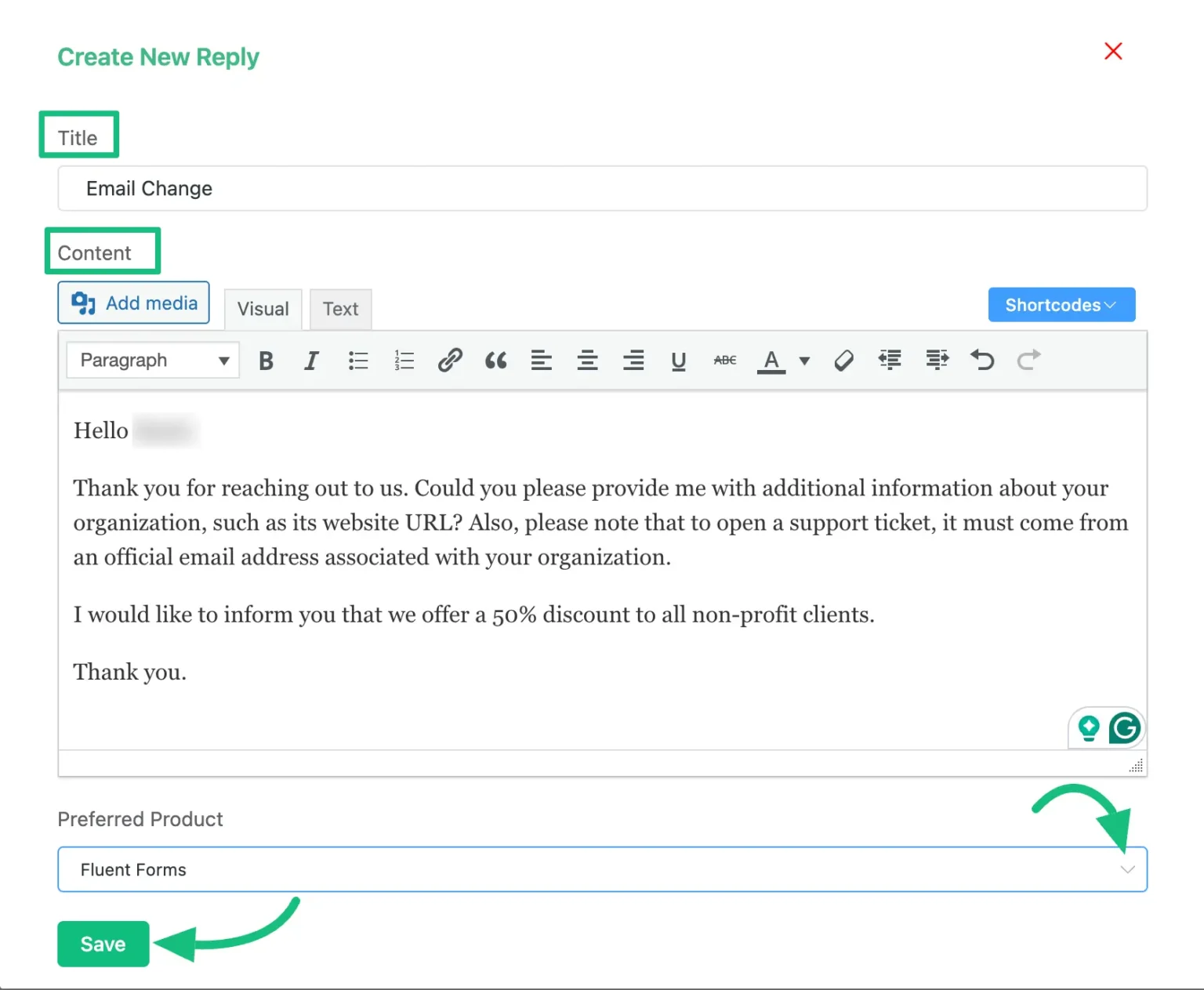
- Go to the Fluent Support Dashboard.
- Click Saved Replies in the menu.
- Click + Create New (this opens a pop-up modal).
- Fill in the details:
- Title: Enter an internal name for easy identification (e.g., “Password Reset Instructions” or “Purchase of Fluent Support PRO Add-On”).
- Content: Type or paste the full pre-written reply text.
- Product: Select the relevant product from the dropdown (useful for organizing/filtering if you support multiple products).
- Click Save.
Repeat these steps to create as many saved replies (or canned responses) as needed.
Managing saved replies
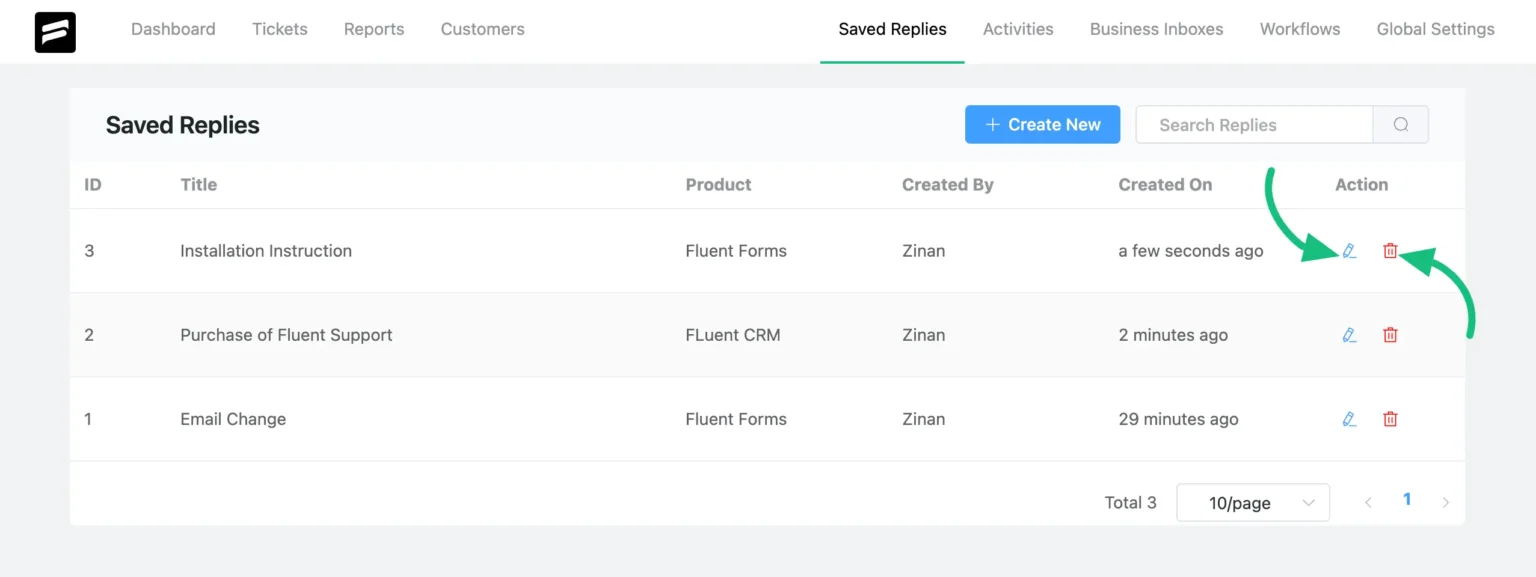
- Edit an existing reply → Use the pencil icon in the Actions column.
- Delete a reply → Use the trash icon in the Actions column.
Use dynamic shortcodes to personalize canned responses in Fluent Support
Before wrapping up, it’s worth checking out these shortcodes (merge tags) that make saved replies in Fluent Support feel personal without extra effort. These dynamic variables automatically pull real data into your templates, so agents don’t need to manually edit names, emails, or signatures.
Fluent Support dynamic shortcodes:
- Customer details: {{customer.first_name}}, {{customer.last_name}}, {{customer.full_name}}, {{customer.email}}, {{customer.title}}, {{customer.status}}
- Agent details: {{agent.first_name}}, {{agent.last_name}}, {{agent.full_name}}, {{agent.email}}, {{agent.title}}
These shortcodes are enough to personalize the canned response templates.
Wrapping up
Canned responses (saved replies) aren’t about being lazy. They’re about being smart. By using pre-written, tested responses for common scenarios, your customer support team:
- Responds faster without sacrificing quality
- Maintains consistency across agents and time zones
- Reduces agent burnout from repetitive tasks
- Delivers better customer experiences
Start with 10-15 of the templates above (the ones most relevant to your product). Customize them for your brand voice.
Also, if you are using Fluent Support, then add them today. Your agents and your customers will thank you.
Start off with a powerful ticketing system that delivers smooth collaboration right out of the box.
Related Articles
401 Error: What It Means and How to Fix It
A 401 error means the server rejected your…502 Bad Gateway Error: What Is It And How To Fix
If you do not take any steps to…


Leave a Reply