

Fluent Support 2.3.0: MCP Server, Multi-Provider AI, Commerce Workflow Conditions, and More

By Shahjahan Jewel
July 13, 2026
Last Modified: July 20, 2026


Fluent Support 2.3.0 is here! This release introduces a brand-new MCP Server, allowing compatible AI agents to securely connect with your helpdesk for ticket insights, reporting, search, and automation.
We’ve also expanded the AI Response Generator with multi-provider support, Besides OpenAI, Now you can connect Gemini, or Anthropic as your preferred LLM for generating customer replies.
Plus, this release adds powerful eCommerce workflow conditions for FluentCart and EDD, introduces WP-CLI migration tools for Zendesk and HelpScout, and includes a focused round of bug fixes and security improvements.
Introducing MCP for Support Tickets
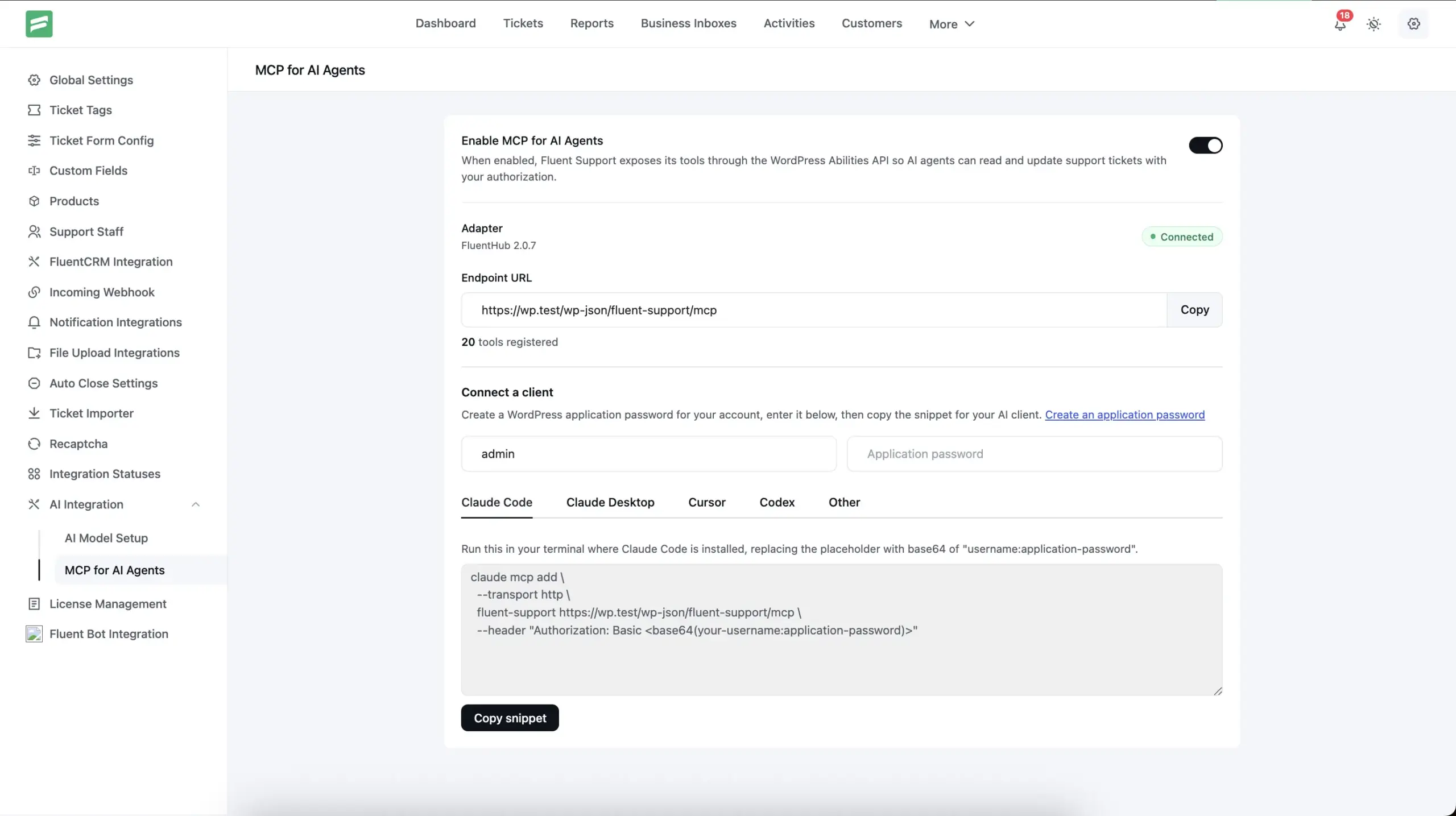
Fluent Support 2.3.0 ships a Model Context Protocol (MCP) server. AI agents — including Claude, GPT-based tools, and any MCP-compatible client — can now connect directly to your support data and take actions on your behalf.
What MCP Unlocks
Once connected, an AI agent can read ticket details, browse conversations, and pull up customer information without you copying and pasting context into a chat window. That means you can ask your AI assistant to summarize a complex thread, draft a reply based on past interactions, or look up a customer’s ticket history — all through a direct, authenticated connection to Fluent Support.
MCP is a standards-based protocol, so it works with any MCP-compatible client. You configure access from the new MCP Settings page in your Fluent Support admin.
What Can Your AI Assistant Actually Do?
This isn’t a read-only integration. Fluent Support’s MCP server ships with 25 tools that cover almost everything an agent does in a normal workday. Once connected, your AI assistant can:
- Triage the queue — list and filter tickets by status, priority, product, mailbox, or tags. Every ticket comes with signals like who replied last, how long the customer has been waiting, and which tickets have never received a first response.
- Get full situational awareness in one call — a single “support context” tool tells the AI who it’s working as, which tickets are waiting on a reply, which ones are unassigned, which are breaching your SLA targets, and what’s critical right now.
- Read and respond to tickets — pull up a full conversation thread, draft and send customer-facing replies, add internal notes, close a ticket with a final message, or reopen one that came back.
- Keep things organized — assign tickets to agents, add or create tags on the fly, update priority and status, and run bulk actions on up to 50 tickets at once.
- Understand the customer — search customers, view their ticket history, and (if you use WooCommerce, FluentCart, or FluentCRM) see their purchase history and CRM tags right inside the ticket context. So when the AI drafts a reply, it knows it’s talking to a customer who bought your Pro plan two weeks ago.
- Report on performance — pull first-response times, resolution times, per-agent performance, and volume trends without opening the Reports page.
- Use your saved replies — list, create, and reuse canned responses, including dynamic placeholders like the customer’s first name.
Pro users get a couple of extras too: merging duplicate tickets and inspecting automation workflows through the same connection.
Real Prompts You Can Try Today
The best way to understand MCP is to see what a conversation with your AI assistant looks like once your helpdesk is connected. Here are a few real examples:
Start your morning:
“Catch me up. What’s waiting on me right now, and is anything breaching SLA?”
The AI pulls your queue, separates tickets that are waiting on you from ones waiting on the customer, and flags anything unassigned or overdue — before you’ve opened a single tab.
Handle a tricky ticket:
“Summarize ticket #4521 for me, check what this customer has purchased, and draft a friendly reply.”
The AI reads the full thread, sees the customer’s order history, and drafts a response with actual context — not a generic template. You review it, then tell it to send.
Clean up the backlog:
“Find all open tickets that mention refunds, tag them ‘refund-request’, and assign them to Sarah.”
One instruction, and the AI searches, tags, and bulk-assigns — work that used to mean fifteen minutes of clicking.
Check on the team:
“How did we do last month? What was our average first response time, and who handled the most tickets?”
You get a plain-language performance summary pulled straight from your real support data.
Stay on top of mentions:
“Did anyone mention me in a ticket note while I was away?”
The AI checks your unread @mentions and gives you a quick rundown.
Connected in Five Minutes
Setting this up doesn’t require a developer. Here’s the whole process:
- Head to Fluent Support → Settings → MCP for AI Agents and flip the toggle on. (The MCP server is off by default — nothing is exposed until you enable it.)
- Install the connection layer. Fluent Support uses the official WordPress MCP infrastructure, provided by our free FluentHub plugin — there’s a one-click install button right on the settings page. You’ll need WordPress 6.9 or later.
- Create an Application Password for your agent account — this is WordPress’s built-in, revocable-anytime credential system. No new passwords, no third-party accounts.
- Copy your config snippet. The settings page generates ready-to-paste configurations for Claude Code, Claude Desktop, Cursor, and Codex, plus a generic setup for any other MCP-compatible client. Paste it into your AI tool, and you’re connected.
That’s it. Your AI assistant now talks to your helpdesk over a single secure endpoint on your own site.
Security Wasn’t an Afterthought
Giving an AI access to customer conversations is a big deal, so we built the permission model first and the features second:
- Off by default. The MCP server does nothing until an admin explicitly enables it.
- Your data stays on your server. Nothing is synced or copied to a third-party service. The AI fetches only what it asks for, when it asks, over an authenticated connection to your own site.
- The AI is only ever as powerful as the agent it logs in as. Every MCP connection authenticates as a real WordPress user, and every tool respects that agent’s Fluent Support permissions. An agent who can’t delete tickets in the dashboard can’t delete them through AI either. Mailbox restrictions, report access, and sensitive customer data permissions all carry over exactly.
- Destructive actions are clearly flagged. Tools that delete or merge data are annotated as destructive using the MCP standard, so well-behaved AI clients ask for your confirmation before running them.
- Revoke access instantly. Since authentication runs on WordPress Application Passwords, cutting off an AI client is one click — no plugin settings required.
Why This Matters
Support work has always had two halves: the human part (empathy, judgment, knowing your product) and the mechanical part (searching, tagging, assigning, summarizing, status updates). MCP lets you hand the mechanical half to an AI assistant that works inside your helpdesk, with your data, under your permission rules — while you keep the judgment calls.
And because MCP is an open standard rather than a proprietary integration, this connection gets more useful every month as the ecosystem of AI tools around it grows. Your helpdesk is ready for all of them, today.
Multi-Provider AI Support
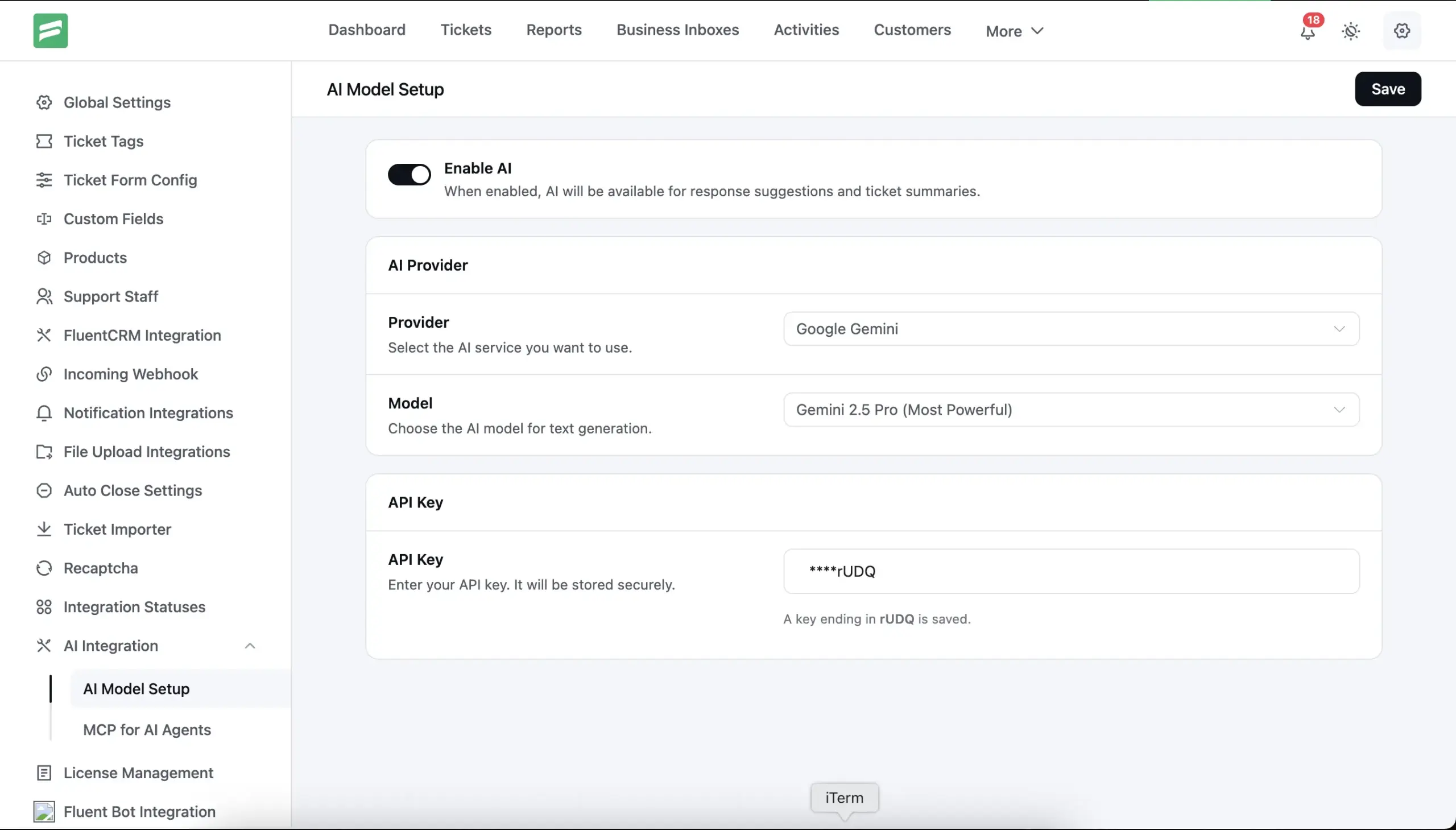
Until now, Fluent Support’s AI assistant worked exclusively with OpenAI. Starting with 2.3.0, your team can choose the AI backend that fits best. Supported providers are OpenAI, Google Gemini, and Anthropic.
A redesigned AI Model Setup settings page replaces the old OpenAI integration page. Pick your provider, choose a specific model from the dropdown, and save your API key. Keys encrypt at rest and display only the last four characters once you save them.
Provider and model selection are independent, so you can switch models without re-entering your key. The Enable AI toggle gates every AI feature in one place — turning it off disables response suggestions and ticket summaries across the entire plugin.
Commerce Workflow Conditions
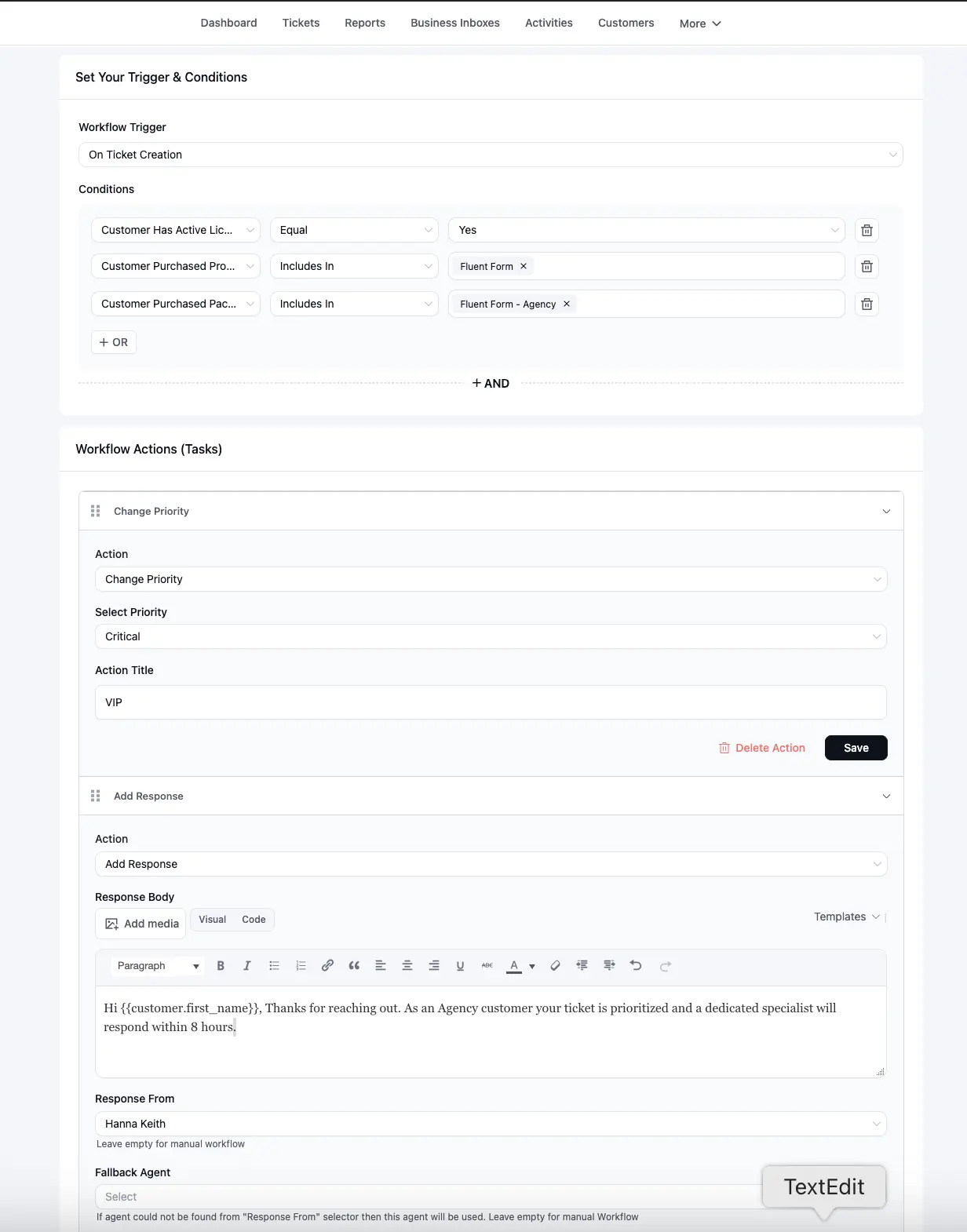
Workflow automations in Fluent Support Pro get a significant upgrade in 2.3.0. You can now branch automations on a customer’s purchase history. This is especially useful for routing tickets by product tier, enforcing SLAs by license type, or tagging tickets for specific teams automatically.
FluentCart Conditions
Three new workflow conditions connect to FluentCart customer data:
- Customer Purchased Product — check whether the customer bought a specific product
- Customer Purchased Package (Variation) — match on a specific product package or variation
- Customer Has Active License — confirm the customer currently holds a valid license
Easy Digital Downloads Conditions
The same three conditions — Purchased Product, Purchased Variation, and Has Active License — are now available for Easy Digital Downloads customers. If your store runs on EDD, your workflows can apply the same commerce-aware routing logic.
Remote Product Search
Commerce condition fields now include a live search picker for products and variations. Instead of loading your entire catalog upfront, the field fetches matching results as you type.
More Workflow Actions
Two new workflow actions ship alongside the conditions:
- Change Priority — set a ticket’s priority automatically as part of a workflow action sequence
Workflows that fire also now send an internal notification to the assigned agent, so agents know when an automation has acted on one of their tickets.
CLI Migration for Zendesk and HelpScout
Migrating from Zendesk or HelpScout just got a lot simpler. Fluent Support 2.3.0 ships two new WP-CLI commands to import your ticket history — including customers, conversations, and attachments — directly into your installation.
wp fluent_support zendesk_ticket_import
wp fluent_support helpscout_ticket_import
Both commands walk you through authentication interactively. The Zendesk importer accepts an optional --include_archived flag for archived ticket history.
Both migrations are resumable. If a large import pauses midway — due to a timeout, API rate limit, or manual stop — re-running the command picks up from the last processed page. No duplicate imports, no lost data.
Load More in Sidebar Widgets
The Previous Conversations widget in the ticket sidebar now support load-more pagination. Agents handling customers with long ticket histories no longer hit a hard cut-off. The widget loads results on demand, and any in-flight request cancels automatically when you open a different ticket.
Previous ticket results in the widget also now scope to agent visibility. Only tickets the current agent can access appear in the list.
Improvements
AI response markdown rendering. AI-generated replies now display as formatted HTML in the reply editor. Bold text, lists, code blocks, and line breaks all render correctly before you insert the suggestion into your reply.
Saved reply and AI guidelines sanitization. Saved reply access now restricts correctly per agent permissions. Agent AI guideline input sanitizes before storage to prevent injection via settings fields.
Bug Fixes
Agent @mention search. Searching for agents in replies failed silently when the agent list was large. Mention search now runs server-side, so it works correctly regardless of team size.
Inline pasted images in emails. Images pasted inline into a reply were not appearing in the outgoing email notification. This release fixes the attachment pipeline so inline images load correctly in emails.
Email addresses in internal notes. URLs and email addresses inside internal notes were auto-converting to clickable hyperlinks. Internal notes now preserve plain text as written.
Sticky close_ticket flag. A close flag set during one reply was persisting into the next reply, causing tickets to close unexpectedly on follow-up messages. The flag now clears correctly after each submission.
Attachment limit message. The error shown when a customer exceeds the file size limit now displays the configured maximum instead of a generic string.
Signature and shortcode in agent-initiated tickets. Agent signatures and shortcodes were missing from the notification emails sent for agent-initiated tickets. Both now apply correctly.
Mailbox Settings error notification. An incorrect $notify call signature silently suppressed error toasts in Mailbox Settings. The call uses the correct signature now and errors surface properly.
Active navigation link background. The highlighted background on the active nav link was using an incorrect design token, causing visual inconsistency in some themes. The correct token applies now.
Closing Thoughts
Fluent Support 2.3.0 brings a direct MCP interface so AI agents can work inside your helpdesk without any copy-paste, opens up your AI assistant to the provider your team already relies on, and gives your Workflow automations real purchase-aware intelligence for FluentCart and EDD stores. The CLI migration tools make Zendesk and HelpScout imports far less painful, and the sidebar widget improvements mean agents get the full picture without page reloads.
Update now from your WordPress dashboard. As always, back up before you upgrade. If anything feels off after the update, our support team is here. Happy supporting!
Full Changelog
Free
- Added: MCP (Model Context Protocol) server integration — AI agents can now connect directly to Fluent Support tickets, conversations, and customer data via a standards-based MCP interface; configurable from a new MCP Settings page
- Added: Load-more pagination for Previous Conversations sidebar widget
- Improved: AI response content now renders markdown (bold, lists, code blocks) correctly when inserted into the reply editor
- Improved: Previous ticket query scoped to agent visibility, preventing data leakage in the sidebar widget
- Improved: Redesign ticket watchers widget with collapsible toggle
- Improved: Redesign customer/agent ticket list thread, label with role icon badge
- Fixed: Agent @mention search failing with large agent lists — search is now server-side
- Fixed: Inline pasted images not appearing correctly in sent email notifications
- Fixed: Email addresses in internal notes being auto-converted to clickable hyperlinks
- Fixed: Repeated replies closing tickets due to sticky close_ticket flag persisting across responses
- Fixed: Attachment limit error message now shows the configured maximum instead of a generic message
- Fixed: Agent signature and shortcode not applied in agent-initiated ticket notification emails
- Fixed: Mailbox Settings error notification not displaying (wrong $notify call signature)
- Fixed: Active navigation link using incorrect background color design token
- Security: Escaped AI response content before markdown conversion to prevent XSS
- Security: Restricted saved reply access and sanitized agent AI guidelines input
Pro
- Added: Multi-provider AI support — choose between OpenAI, Gemini, and Anthropic as your AI backend from the new AI Model Setup settings page; provider and model are independently configurable
- Added: CLI migration support for Zendesk and HelpScout — import tickets, customers, and conversations via WP-CLI
- Added: FluentCart workflow conditions — Customer Purchased Product, Customer Purchased Package (Variation), and Customer Has Active License; enables product-tier routing and SLA enforcement automatically
- Added: Easy Digital Downloads workflow conditions — same commerce conditions (Purchased Product, Purchased Variation, Has Active License) for EDD customers
- Added: Change Priority workflow action — set a ticket’s priority automatically as a workflow action step
- Added: Remote product search in Workflow commerce conditions — searchable product/variation picker for large catalogs
- Improved: Workflow trigger fires an internal notification to assigned agents when an automation runs
Related Articles
Fluent Support 2.4.7: Ticket Filters, 5x Faster Tickets and Smart Customer Search
Fluent Support 2.4.7 brings a Ticket Filters sidebar…Customer Success Best Practices for Small Teams
In this blog, we’ve discussed customer success in…


Add your first comment to this post