

Fluent Support MCP Server: A Complete Guide for AI-Connected Support

By Md. Sajid Sadman
August 7, 2026
Last Modified: August 7, 2026


Your favorite helpdesk (Fluent Support) just got a superpower: an MCP connection that lets AI actually work inside it.
Imagine typing one sentence to Claude and watching it fly through your ticket queue, opening conversations, pulling up customer order history, drafting replies that sound genuinely human, and sending them, while you sit back and watch it happen in real time.
This is not a demo. This is not “coming soon.” This is Fluent Support’s brand new MCP server, live right now, and it is about to change how you think about support work.
Ready to see exactly how it works and everything it can do? Let’s get into it.
What Fluent Support’s MCP Server Actually Is
MCP stands for Model Context Protocol, an open standard that lets AI clients connect to external tools and data sources through a secure, authenticated bridge. Instead of you describing a ticket to an AI assistant by hand, the AI reads it directly from Fluent Support, using the same permissions your WordPress account already has.
Fluent Support ships this as a built-in MCP server. Once connected, your AI assistant can browse tickets, draft replies, close conversations, and look up customer history, all through your own WordPress site.
Note: The feature is available on the free version of Fluent Support. No Pro license is required to connect an AI client.
What You Need Before You Start
A few things need to be in place first.
If FluentHub is not installed yet, Fluent Support prompts you to install it directly from the MCP settings page. No separate setup is needed.
How to Connect Fluent Support to Claude Desktop
Fluent Support supports several ways to connect: Claude Code, Claude Desktop, Cursor, Codex, and a generic ‘Other’ option for any MCP-compatible client. We will walk through the process using Claude Desktop.
So, let’s get started.
Step 1: Open the MCP Settings
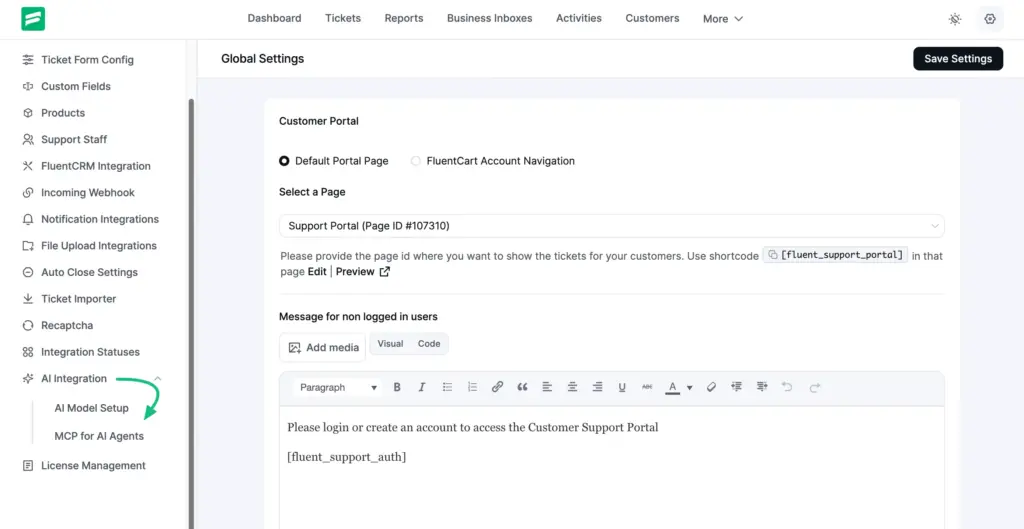
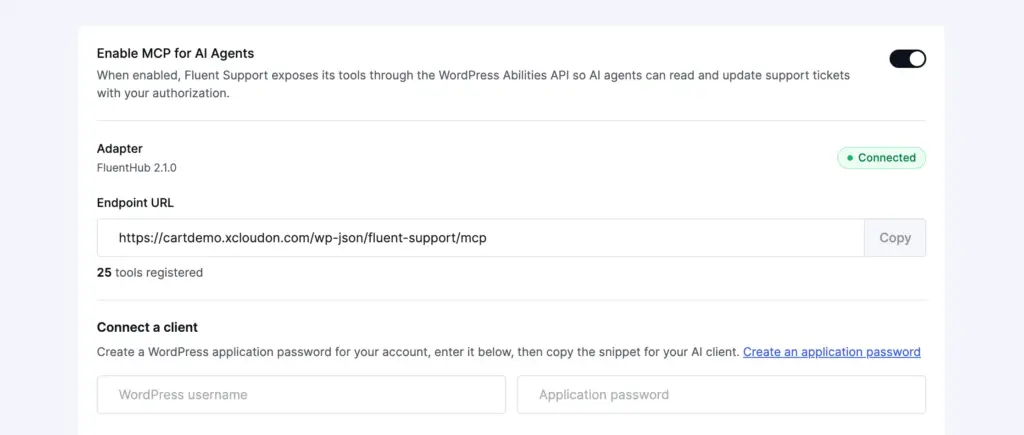
Go to Fluent Support in your WordPress dashboard, click Global Settings, then find MCP for AI Agents under the AI Integration section.
Step 2: Enable MCP for AI Agents
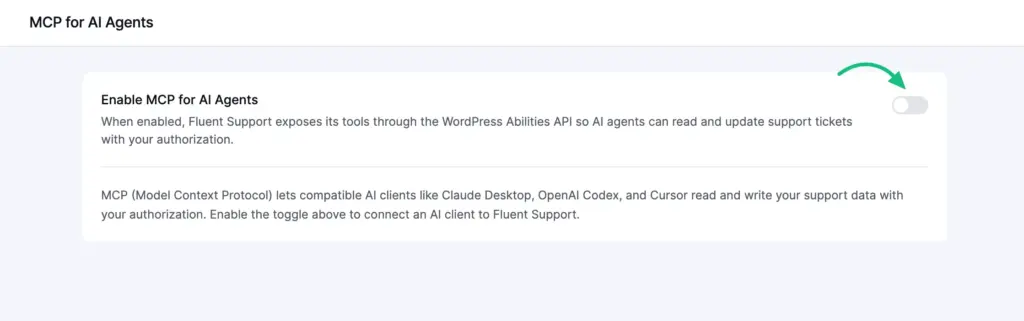
Turn on the Enable MCP for AI Agents toggle at the top of the page. This is off by default, nothing is exposed to any AI client until you turn it on yourself.
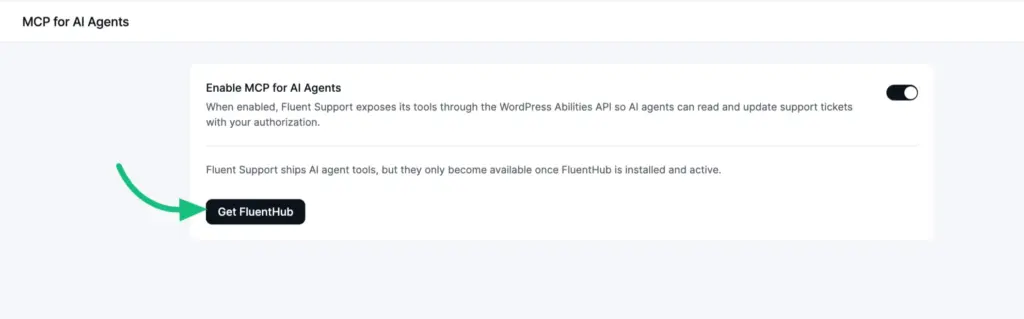
If FluentHub is not active yet, a Get FluentHub button appears as soon as you flip the toggle. Click it and install the plugin. If it is already installed but not active, you will see an Activate FluentHub button instead.
Once FluentHub is active, the page shows a Connected badge along with your Endpoint URL, and the Connect a client panel appears below it.
Step 3: Create an Application Password
Your AI client authenticates using a WordPress Application Password, a credential that is completely separate from your login password and can be revoked at any time.
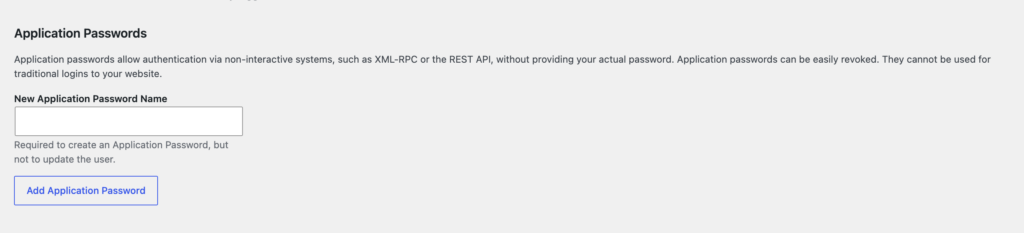
In the Connect a client panel, click Create an application password. This opens your WordPress profile page.
- Scroll to the Application Passwords section.
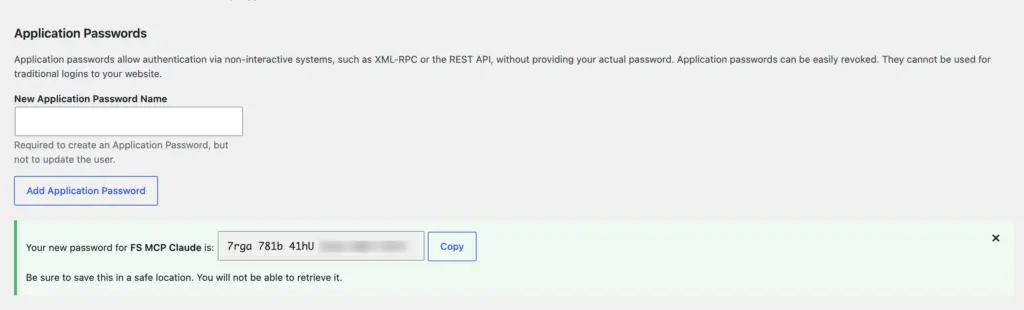
- Type a recognizable name, like Claude Desktop (I have named as FS MCP Claude).
- Click Add Application Password.
WordPress generates the password immediately. Copy it right away, since it will not be shown again after you leave the page.
Step 4: Connect Claude Desktop
Head back to Fluent Support → Global Settings → MCP for AI Agents and find the Connect a client panel.
- Enter your WordPress username.
- Paste the application password you just copied.
- Select the Claude Desktop tab.
- Click Copy snippet.
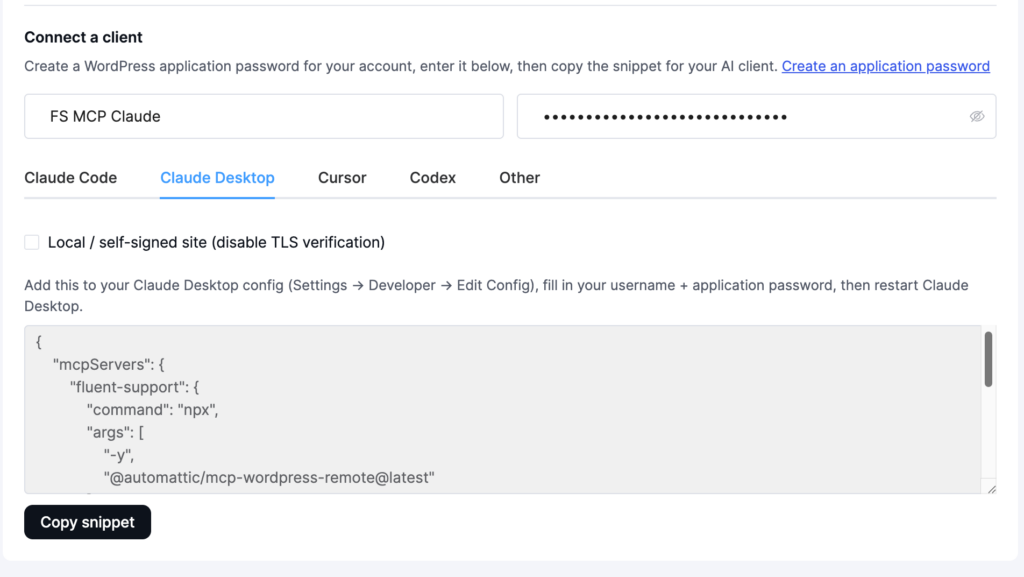
The snippet is a small JSON block containing your endpoint and credentials, already filled in.
Step 5: Add the Snippet to Claude Desktop
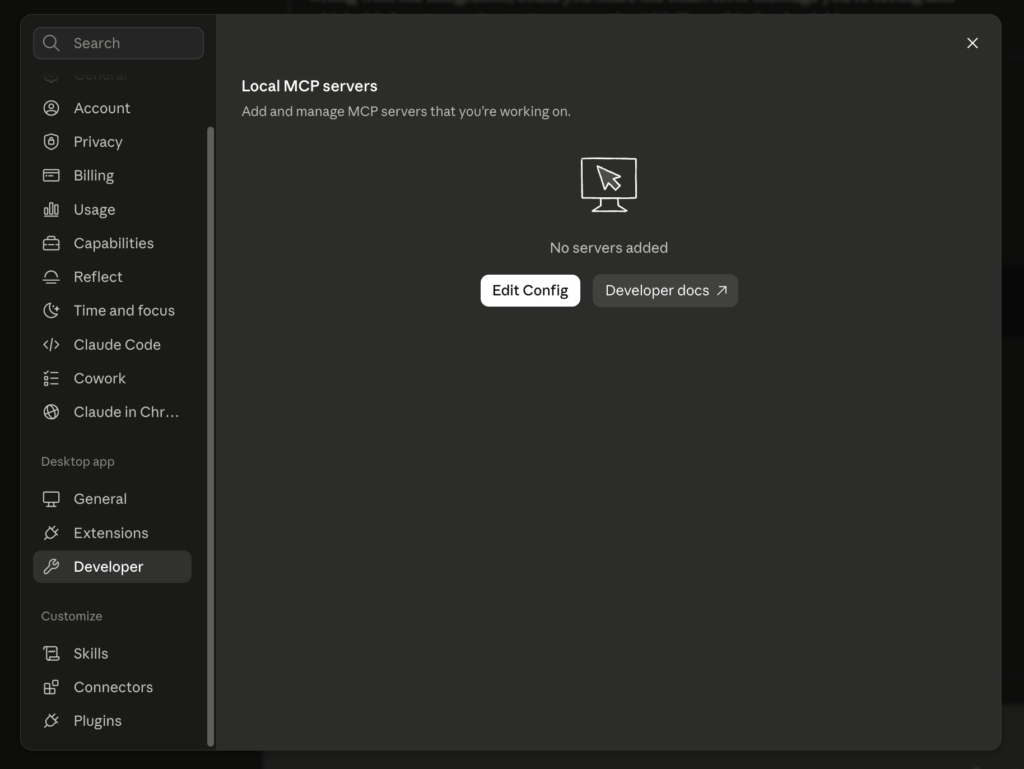
Open Claude Desktop and go to Settings → Developer → Local MCP servers, then click Edit Config. This opens claude_desktop_config.json in your text editor.
Paste the snippet in as its own mcpServers entry, alongside anything already in the file.
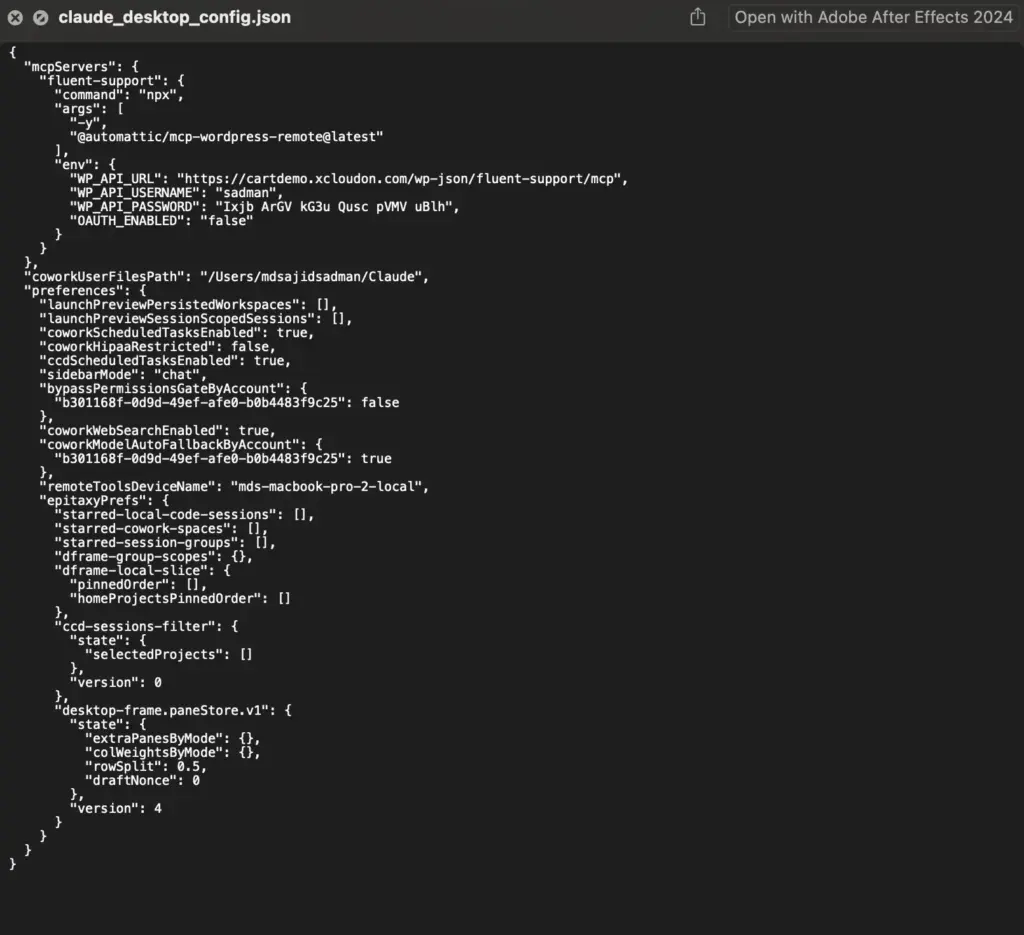
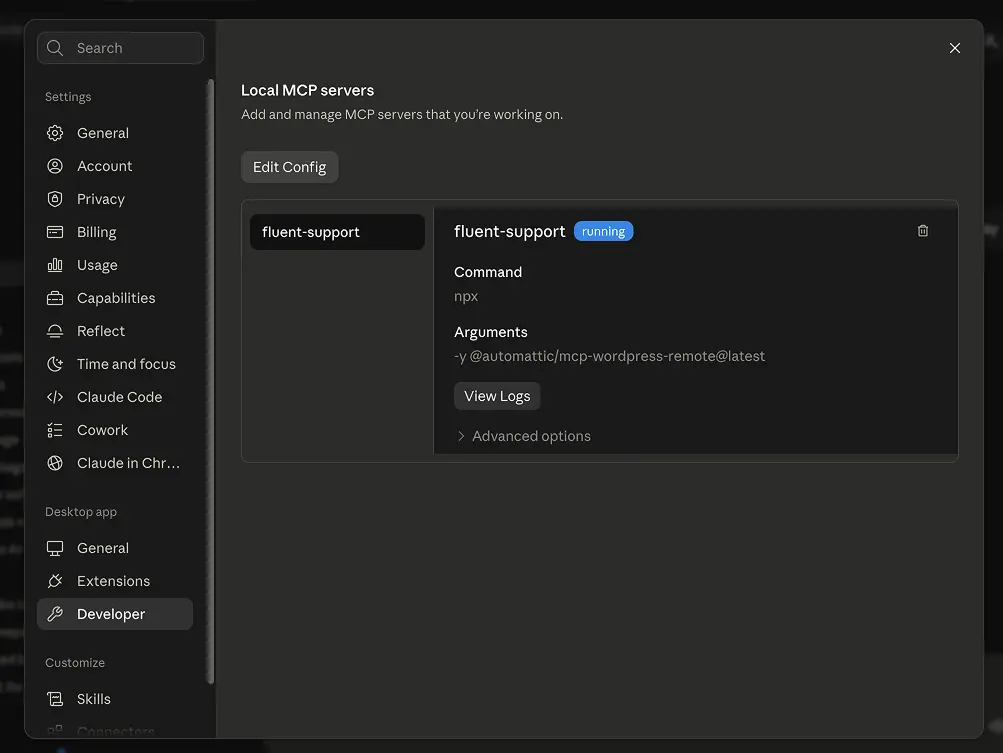
Save the file, then fully quit and reopen Claude Desktop.
Back in Settings → Developer, you should now see fluent-support listed with a running status. Start a new chat, and Claude can read and act on your tickets directly.
What You Can Actually Do With It
Once connected, your AI assistant is not just chatting, it is actually working inside your helpdesk, with 25 tools at its disposal.
Take a look at everything it can do, split across five categories.
Ticket Tools
Communication Tools
Assignment and Tagging Tools
Customer and Activity Tools
Workflow and Insight Tools
Real Ways to Use It
Reading a list of tools does not really show what this feels like day to day. Here are five real scenarios, with the kind of prompt you would actually type.
Starting Your Morning Without Opening the Dashboard
Instead of logging in and scrolling through the queue, you open Claude and type something like:
What’s waiting on me this morning, and is anything close to breaching SLA?
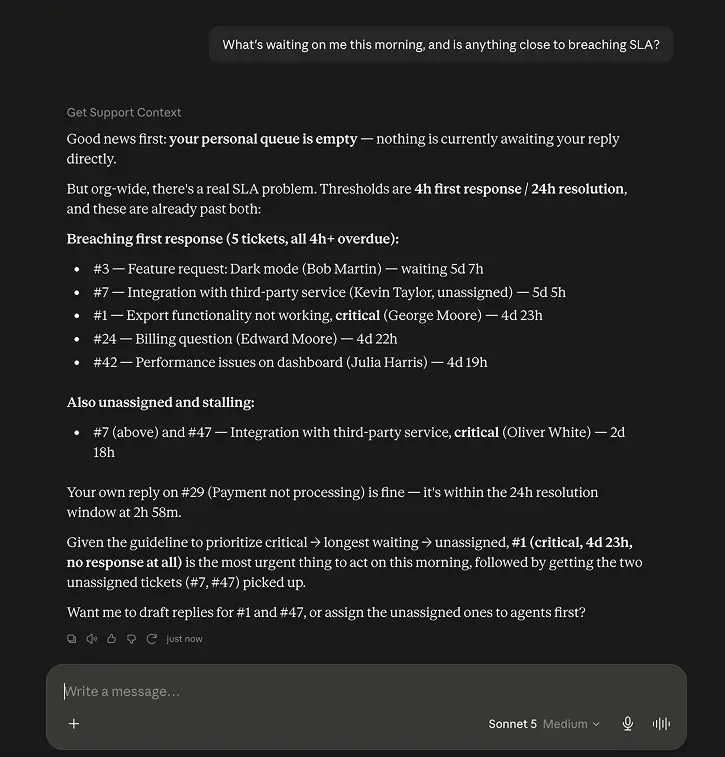
Claude pulls your open tickets, separates the ones waiting on you from the ones waiting on the customer, and flags anything unassigned or close to your response-time target. You get a full picture before you have opened a single tab.
Replying to a Ticket With Actual Context
A customer reports a problem with a third-party integration, but the ticket has almost no detail to go on. Instead of digging through their purchase history yourself, you ask:
Summarize ticket #7, check what this customer has purchased, and draft a reply.
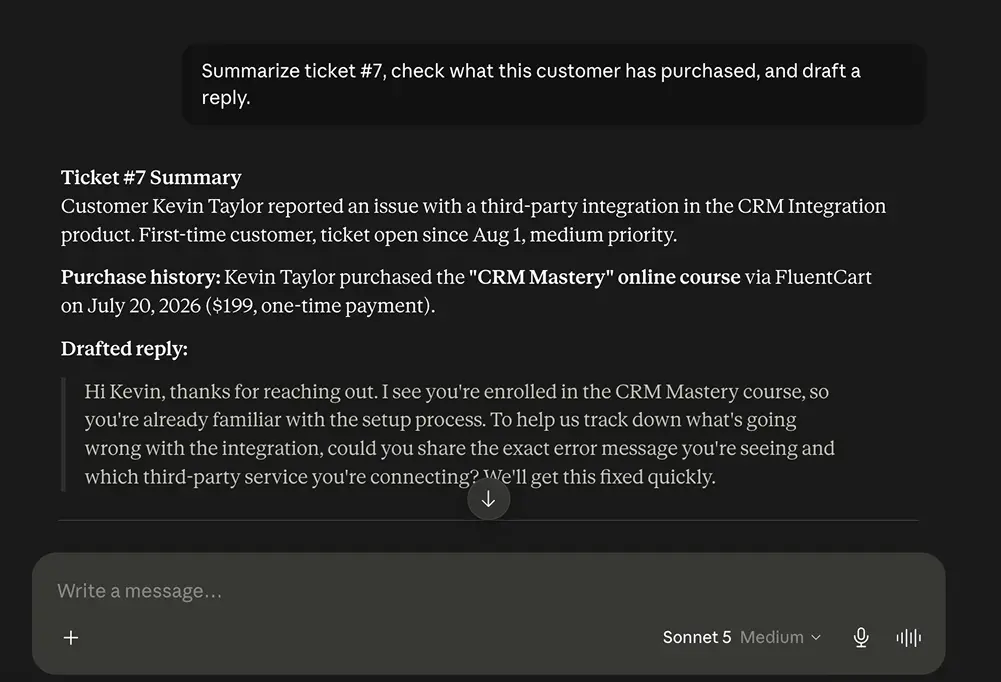
If you use WooCommerce, FluentCart, or FluentCRM, Claude pulls the customer’s purchase history alongside the ticket thread. The draft it writes references what they actually bought instead of reading like a generic template. You review it, edit if needed, then have Claude send it.
Clearing a Backlog in One Instruction
Say your queue has a dozen tickets piling up about a specific issue, like a integration bug. Rather than opening each one individually, you ask:
Find every open ticket that mentions the “intgeration”, tag them “integration-issue,” and assign them to Sarah.
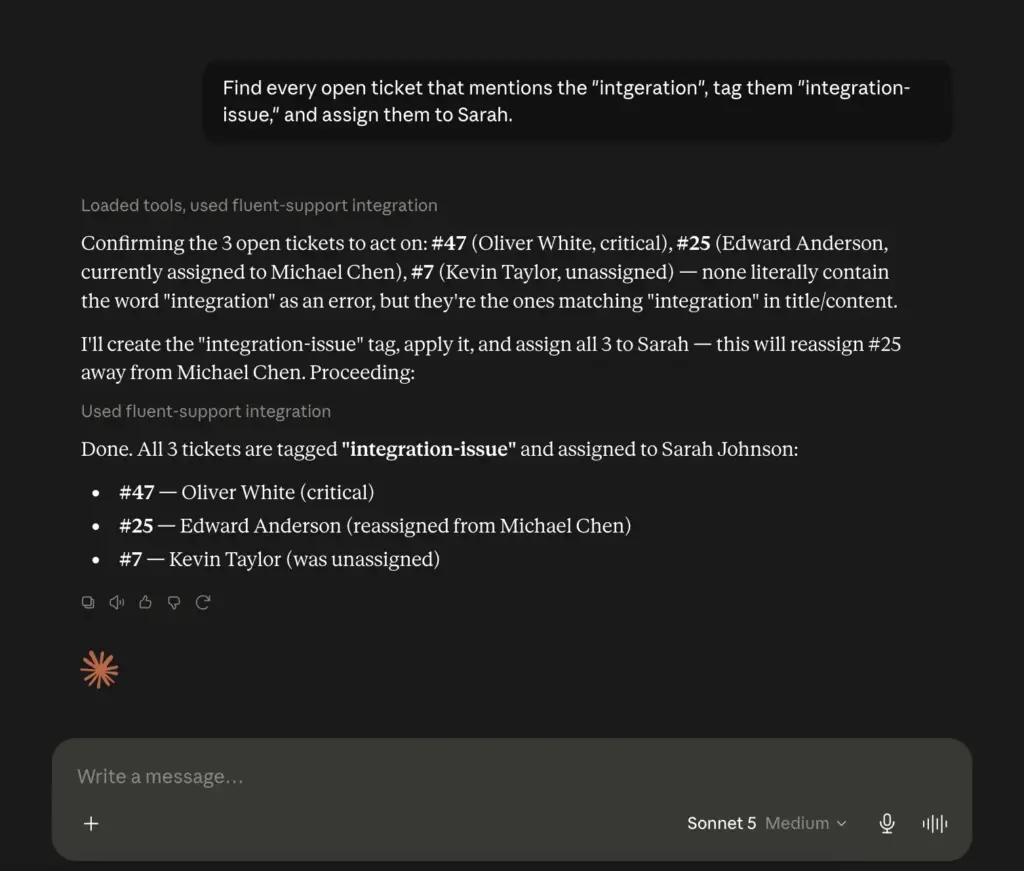
Claude searches, tags, and reassigns all of them in one pass. Work that would normally take fifteen minutes of manual clicking happens in the time it takes to type one sentence.
Getting a Straight Answer on Team Performance
Instead of opening the Reports page and filtering by date range, you ask directly:
How did the team do last week? What was our average first response time, and who closed the most tickets?
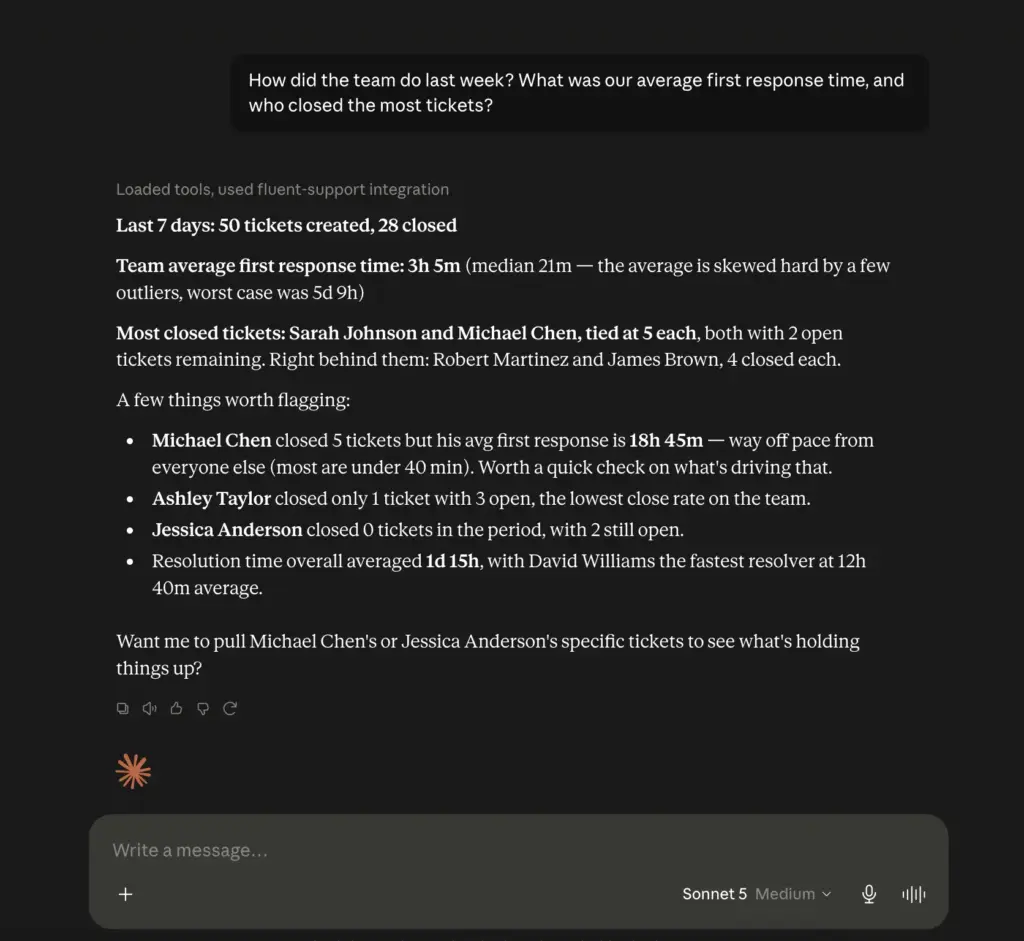
Claude queries the same data the Reports page shows and gives you a plain answer, without you needing to build a report first.
Turning a Great Answer Into a Reusable Template
You just wrote a really solid reply explaining a payment issue, one that finally got the wording right after a few tries. Instead of digging through old tickets to find it again next time, you ask:
Take my last reply on ticket #3390 and save it as a canned reply called “Payment Issue.”
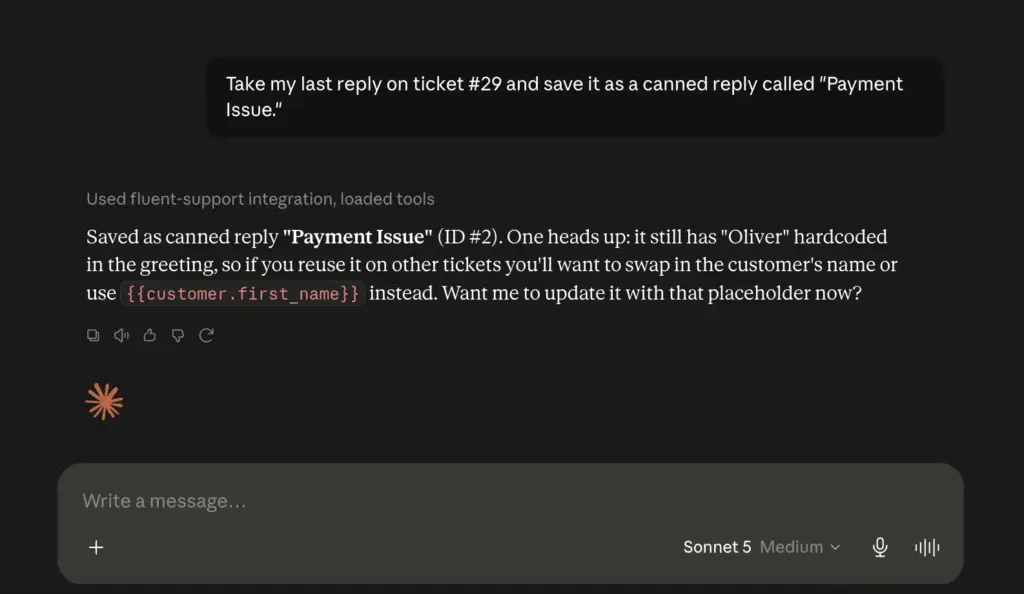
Claude pulls the exact wording from that ticket and creates the saved reply for you. Next time a similar question comes in, it’s one click away instead of something you have to rewrite from memory.
Is This Safe to Use
Handing an AI access to customer conversations deserves some caution. Fluent Support built the permission model with that in mind.
- Off by default. The MCP server does nothing until you turn it on.
- Nothing leaves your server. The AI fetches data from your own WordPress site over an authenticated connection. Nothing is synced or copied elsewhere.
- Permissions carry over exactly. The AI logs in as a real WordPress user, and every action respects that user’s existing Fluent Support permissions. An agent who cannot delete tickets in the dashboard cannot delete them through AI either.
- Destructive actions are flagged. Tools that delete or merge data are marked as destructive under the MCP standard, so a well-behaved AI client asks for confirmation before running them.
- Revoking access takes one click. Since authentication runs through WordPress Application Passwords, you can cut off any AI client instantly from your profile, without touching any plugin settings.
Just a heads up: if you are still replying to every ticket by hand and digging through customer history one tab at a time, that is exactly the kind of work this connection was built to take off your plate. The MCP server comes free with Fluent Support, no Pro license needed.
Getting Started
Support work has always split into two halves: the human part, like empathy and judgment and knowing your product, and the mechanical part, like searching, tagging, assigning, and summarizing. Fluent Support’s MCP server hands the mechanical half to an AI assistant that works inside your actual helpdesk, under your actual permissions, while you keep making the judgment calls.
The setup takes a few minutes. Once it is done, tasks that used to mean opening tabs and clicking through menus become a single sentence typed into a chat window.
Start off with a powerful ticketing system that delivers smooth collaboration right out of the box.
Related Articles
26 Best Ticketing System Software in 2026
The best ticketing system software in 2026 includes…Fluent Support 2.4.5: Remote Portal, New Workflow Triggers and more
Fluent Support 2.4.5 lets you run the customer…



Add your first comment to this post