

Error 522 Connection Timed Out: What It Means and How to Fix It

By Uttam Kumar Dash
May 4, 2026
Last Modified: May 5, 2026


When a visitor hits your site and sees “Error 522 Connection Timed Out,” the problem is clear: your website is unreachable. The issue has nothing to do with your visitor’s internet connection.
It has nothing to do with Cloudflare’s infrastructure either. The problem lives on your origin server, and until you fix it, every visitor trying to reach your site lands on that same error page.
In this blog, we will walk through what error 522 actually means, what causes it, and the exact steps to resolve it and prevent it from coming back.
TL;DR
- Error 522 is a Cloudflare-specific HTTP status code triggered when the connection between Cloudflare and your origin server times out
- The cause is almost always server-side: overload, firewall rules blocking Cloudflare IPs, wrong DNS settings, or disabled KeepAlive
- Fixes include whitelisting Cloudflare IPs, verifying your A record, enabling KeepAlive, and checking server resource usage
- It is different from error 521 (server actively refusing connections) and error 524 (server connected but responded too slowly)
What Is Error 522?
Error 522 is a Cloudflare-specific HTTP status code. It appears when Cloudflare cannot complete a TCP handshake with your origin web server within its timeout window.
Cloudflare introduced this code to describe one specific failure: the connection between its edge network and your server did not go through.
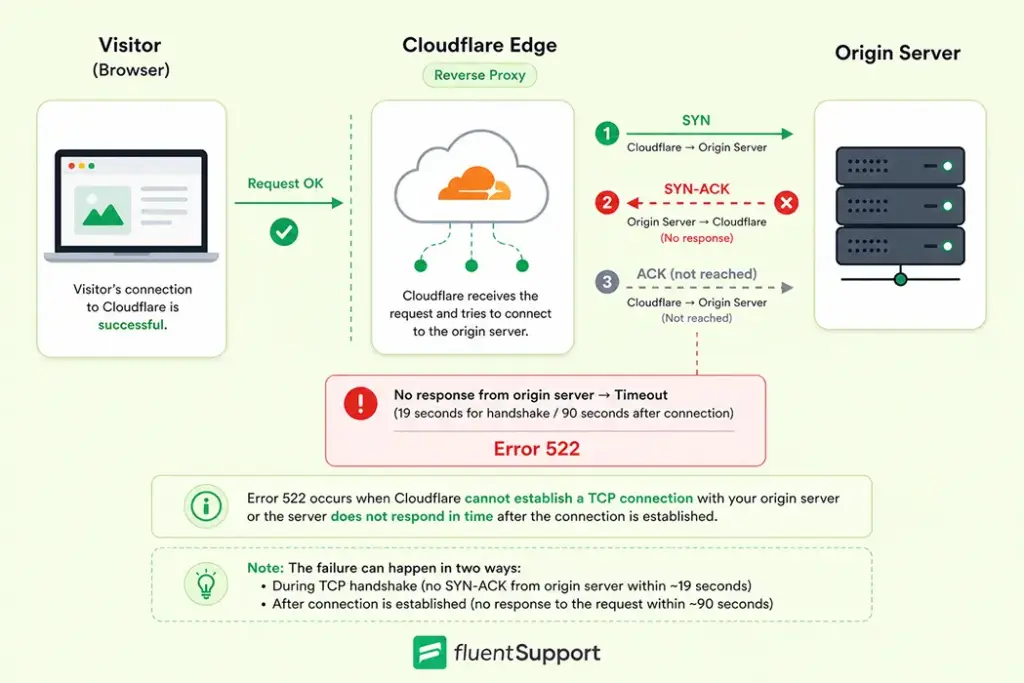
When a visitor loads your site, their browser talks to Cloudflare first. Cloudflare then reaches out to your origin server to fetch the content. This involves a TCP handshake, a three-step process (SYN, SYN-ACK, ACK) that establishes the connection.
If your server does not return a SYN-ACK within 19 seconds, or fails to acknowledge the resource request within 90 seconds after the connection is established, Cloudflare gives up and returns error 522 to the visitor.
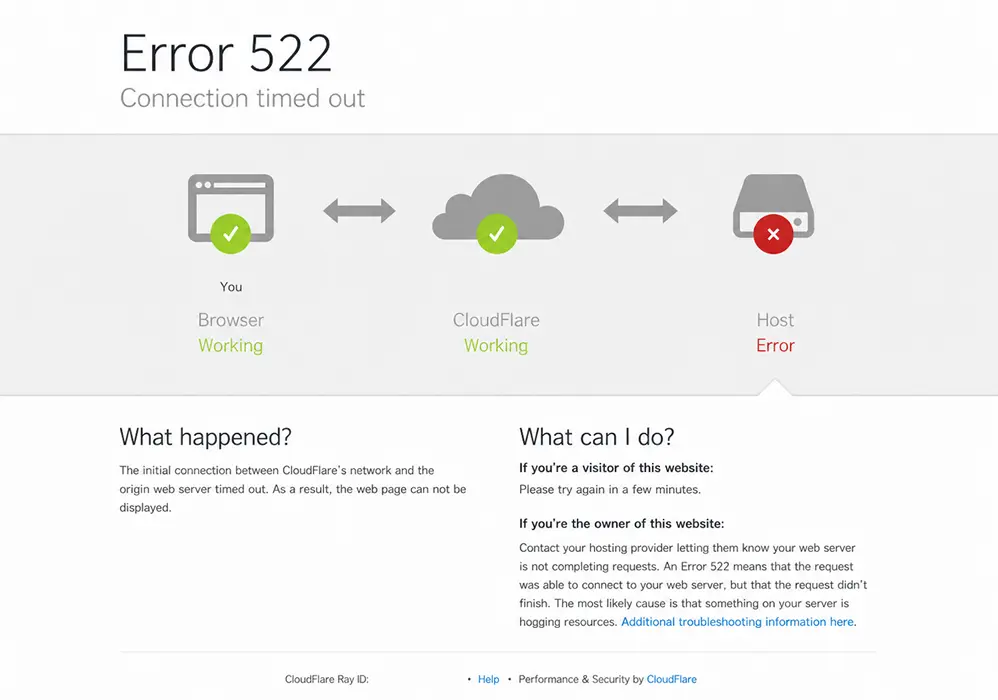
The visitor’s connection to Cloudflare completed successfully. The breakdown happened between Cloudflare and your server.
What causes Error 522?
1. Server overload
This is the most common cause. When your server is maxed out on CPU or RAM during traffic spikes, it cannot accept new incoming connections. Cloudflare sends a request, but the server has no capacity to respond.
Shared hosting plans are especially vulnerable because resources are split across multiple websites on the same machine.
2. Firewall blocking Cloudflare IPs
Cloudflare acts as a reverse proxy. All traffic that reaches your origin server comes from Cloudflare’s IP ranges rather than individual visitors’ addresses.
If your server’s firewall or a security plugin treats those IPs as suspicious and drops the packets, your server never responds. Cloudflare then times out waiting.
3. Incorrect DNS settings
Your Cloudflare DNS must have an A record that points to the correct IP address of your origin server. Server migrations and hosting provider IP changes are common reasons this goes wrong.
When the A record is stale, Cloudflare sends requests to an address that either does not exist or belongs to a different server entirely.
4. KeepAlive disabled
Cloudflare uses persistent TCP connections through KeepAlive headers. When a server closes the connection after every single request, Cloudflare has to re-establish a fresh connection each time.
That repeated overhead increases timeout risk under any meaningful load.
5. Network issues between Cloudflare and your server
Sometimes the server itself is healthy. The failure sits in the network path between Cloudflare’s edge and your hosting provider’s data center.
Packet loss, routing errors, or provider-level congestion can all cause intermittent 522 errors in those situations.
Error 522 vs. Error 521 vs. Error 524
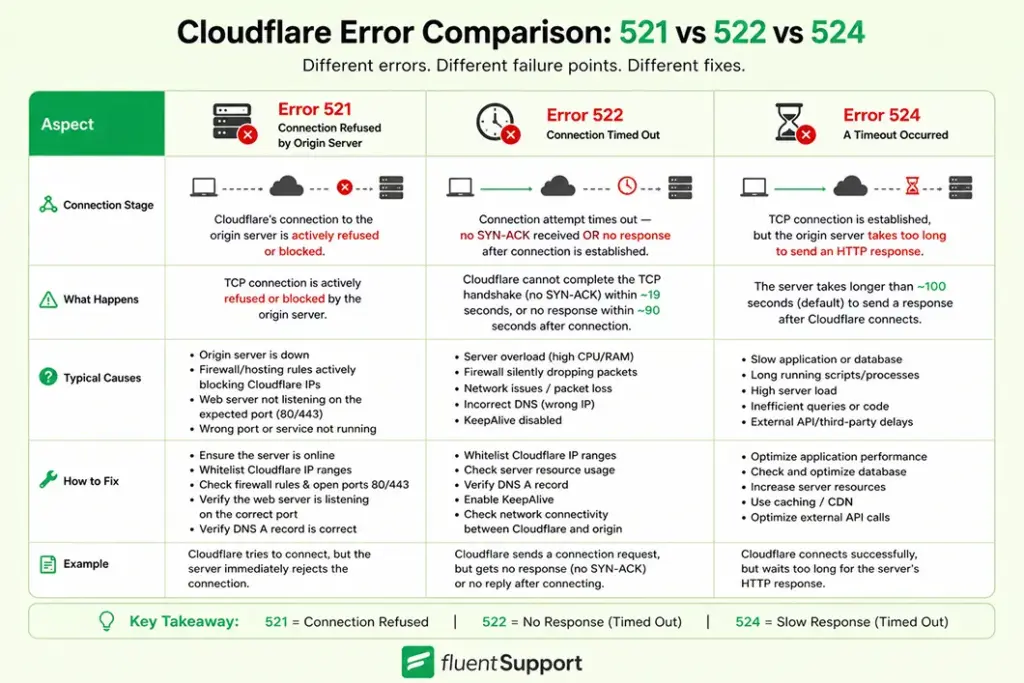
These three Cloudflare errors describe different failure points in the same connection chain.
- Error 521: Cloudflare could not connect to your server at all. The server is actively refusing connections, either because it is offline or a firewall rule is explicitly blocking Cloudflare.
- Error 522: Cloudflare attempted a TCP connection and received no response within the timeout window. The server is not rejecting requests. It is simply not answering them.
- Error 524: Cloudflare established a connection successfully, but the server took too long to send back an HTTP response. The TCP handshake worked. The server just processed the request too slowly.
How to fix Error 522: Step by step
1. Confirm your server is actually online
Start by checking whether the site is down for everyone or just you. Tools like Uptrends or Down for Everyone or Just Me can confirm this in seconds. Also check Cloudflare’s status page to rule out a Cloudflare-side incident before touching anything on your server.
Then try bypassing Cloudflare entirely. Go to your Cloudflare dashboard, open Overview, and under Advanced Actions select Pause Cloudflare on Site. Wait a few minutes, then visit your site directly.
If it loads, your server is running and the issue is in the Cloudflare-to-server path. If the site still does not load, the problem is with your origin server itself.
2. Check server resource usage
Log into your hosting control panel and review CPU, RAM, and I/O usage. Servers that are consistently hitting their limits cannot accept new connections fast enough during traffic surges. Common solutions include removing unused plugins, optimizing database queries, enabling a caching layer, or upgrading to a plan with more resources.
[Insert screenshot example of a hosting panel resource usage dashboard showing CPU and RAM charts]
3. Whitelist Cloudflare IP ranges
This step resolves the majority of persistent 522 errors. Your firewall must allow all Cloudflare IP addresses on ports 80 and 443 for full TCP traffic, not just the initial handshake packet. Cloudflare publishes its full list of IP ranges at cloudflare.com/ips.
For Apache servers, add allow rules to your .htaccess file. For Linux servers with iptables access, add accept rules for each Cloudflare IP range. Most hosting control panels include an IP manager where you can add these ranges directly without touching config files.
4. Verify your cloudflare DNS a record
Go to your Cloudflare dashboard, select your domain, and open the DNS section. Check the A record for your root domain. The IP address in the Content field must match the actual current IP address of your origin server.
Find your server’s IP in your hosting panel under plan details or server information. If there is a mismatch, update the A record in Cloudflare. DNS changes can take up to 24 hours to propagate globally, though most resolve within minutes.
5. Enable KeepAlive on your web server
For Apache, open your httpd.conf or apache2.conf file and confirm KeepAlive On is set. Set KeepAliveTimeout to at least 75 seconds so connections stay open past Cloudflare’s 90-second resource request window.
For Nginx, check nginx.conf for the keepalive_timeout directive and set it to 75s or higher. Restart your web server after making these changes for them to take effect.
6. Review server and application logs
When the steps above do not resolve the error, server logs are the next place to investigate. Check your web server logs (Apache’s error_log, Nginx’s error.log) and your application logs for entries around the time of the error.
A crashing PHP process, a hanging database query, or a misconfigured .htaccess rule can all cause the server to stop responding to new connections without any obvious outward sign.
Does Error 522 affect SEO?
Yes. Search engine crawlers treat 5xx responses as server errors. If Googlebot repeatedly encounters error 522 on your site, it will reduce crawl frequency and may eventually remove affected URLs from the index.
Persistent connection timeouts are among the more damaging server-side issues for search visibility. Resolving the root cause quickly and monitoring uptime proactively will protect your rankings.
How to prevent Error 522 going forward
Set up uptime monitoring so you learn about downtime before your customers do. Review your Cloudflare DNS records after every server migration or hosting provider change.
Audit firewall rules after major security updates and plugin changes, since some updates silently reset IP whitelist configurations. Watch server resource trends over time. CPU usage sitting above 70% consistently is a signal to scale up before a traffic spike forces the issue.
On the support side, site errors like 522 tend to generate a surge of tickets. Having a structured system in place means your team can triage and respond to those reports without things getting chaotic.
Fluent Support gives WordPress-based support teams a proper workflow to manage technical issue reports at scale. For teams running ecommerce support, where uptime directly affects revenue, that structure matters a lot.
Want a system that makes ticket handling this smooth? Fluent Support brings structure and clarity to every request so your team always knows exactly what to do next. See how it works.
Wrapping up
Error 522 is a server-side problem. Cloudflare surfaces it, but your origin server is the source. The fix almost always traces back to one of four things: server overload, Cloudflare IPs blocked by a firewall, a stale DNS A record, or KeepAlive misconfiguration.
Work through the steps in order. Start with server status, then firewall rules, then DNS, then KeepAlive settings. Most 522 errors resolve at step two or three.
FAQ
Is error 522 always the server owner’s fault?
In nearly all cases, yes. The error points to your origin server environment. Your hosting provider, firewall configuration, or server resource limits are where the fix lives.
Can a DDoS attack cause error 522?
Yes. Cloudflare absorbs most DDoS traffic at the edge, but an extremely large attack can still overwhelm your origin server and cause it to stop responding to connection requests entirely.
Will pausing Cloudflare fix error 522?
Pausing Cloudflare is a diagnostic step. If your site loads after pausing it, the problem is in the Cloudflare-to-server connection path. You still need to resolve the underlying cause before re-enabling Cloudflare.
Does error 522 affect only WordPress sites?
No. Error 522 can occur on any website that routes traffic through Cloudflare, regardless of the CMS or platform. The causes and fixes are the same across setups.
Related Articles
How to Setup a Support Ticket System in WordPress?
Learn how to set up a support ticket…Fluent Support 2.4.0: Advanced Reports, AI Ticket Audit, and Portal Protection
Fluent Support 2.4.0 rebuilds reporting with a full…




Add your first comment to this post