

ERR_QUIC_PROTOCOL_ERROR: Meaning and How to Fix It

By Uttam Kumar Dash
July 3, 2026
Last Modified: July 3, 2026


A page refuses to load and Chrome shows ERR_QUIC_PROTOCOL_ERROR instead of your website. The connection worked yesterday; nothing changed on your end, yet the browser blocks the request anyway. This error confuses most people because it rarely explains itself beyond a cryptic code.
In this blog, we will look at what causes ERR_QUIC_PROTOCOL_ERROR and walk through fixes that work for everyday browsing and for website owners troubleshooting visitor complaints.
Key Takeaways
- QUIC: QUIC is an experimental Google protocol that Chrome uses by default, and this error appears when the browser cannot complete a connection through it.
- Common causes: Browser extensions, VPNs, proxy settings, and outdated cache files trigger most cases.
- Fastest fix: Disabling QUIC in Chrome flags resolves the issue for most users within seconds.
- Site owners: Repeated visitor reports usually point to server side HTTP/3 or SSL configuration, not the browser.
What Is ERR_QUIC_PROTOCOL_ERROR
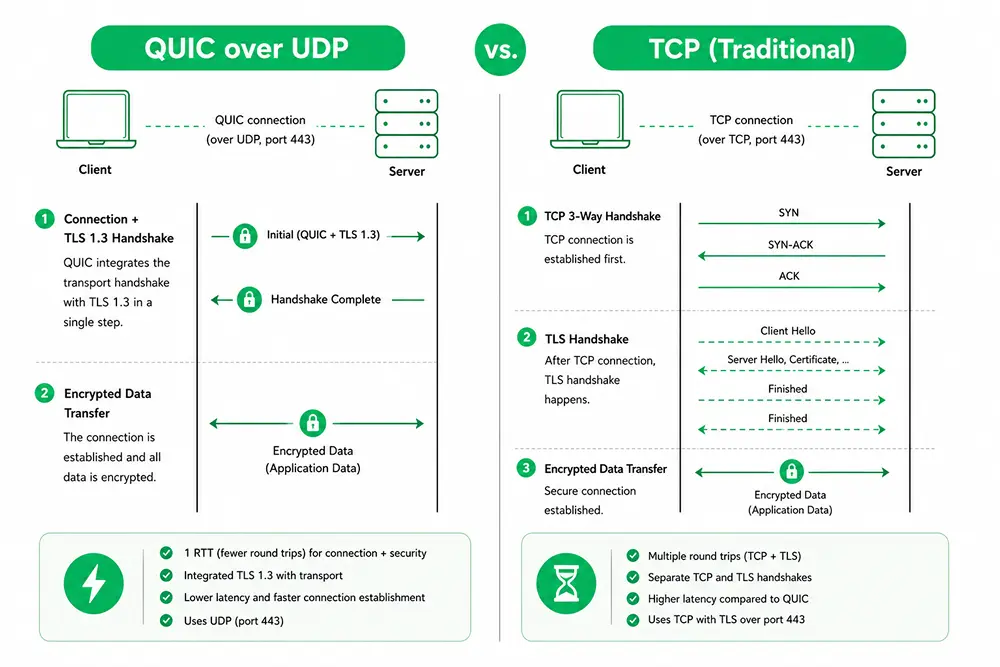
ERR_QUIC_PROTOCOL_ERROR is a Chrome connection error that appears when the browser fails to reach a website through QUIC, short for Quick UDP Internet Connections.
QUIC is a transport protocol built by Google to speed up secure connections by running over UDP instead of standard TCP.
Chrome uses QUIC by default for many sites, and that includes Google properties such as YouTube. When a firewall, proxy, antivirus tool, or corrupted cache blocks that UDP traffic, Chrome cannot finish the handshake and returns this error instead of loading the page.
The message usually reads “This site can’t be reached,” followed by the error code. It looks alarming, but it rarely means your website or internet connection is broken.
What Causes ERR_QUIC_PROTOCOL_ERROR
Several factors interrupt the QUIC handshake and trigger this message. The most frequent causes include:
- Firewall rules: Some firewalls block UDP traffic on port 443, which QUIC depends on for every connection attempt.
- Browser extensions: VPNs, ad blockers, and privacy tools often filter traffic in ways that conflict with QUIC.
- Proxy settings: A misconfigured proxy on Windows can prevent Chrome from completing the QUIC handshake.
- Corrupted cache: Old cached files sometimes hold outdated connection data that no longer matches the server.
- Outdated Chrome build: Older versions occasionally carry QUIC bugs that later updates fix.
Quick Checks Before You Troubleshoot
A few one-minute checks reveal whether the problem sits with Chrome or your network.
- Different browser: Open the same page in Firefox or Edge. If it loads there, the issue is specific to Chrome.
- Incognito window: Test the page in an Incognito tab. A working page here usually points to an extension or cached data.
- Different network: Switch to mobile data or another Wi-Fi network. If the error disappears, your original router or network is filtering QUIC traffic.
How to Fix ERR_QUIC_PROTOCOL_ERROR
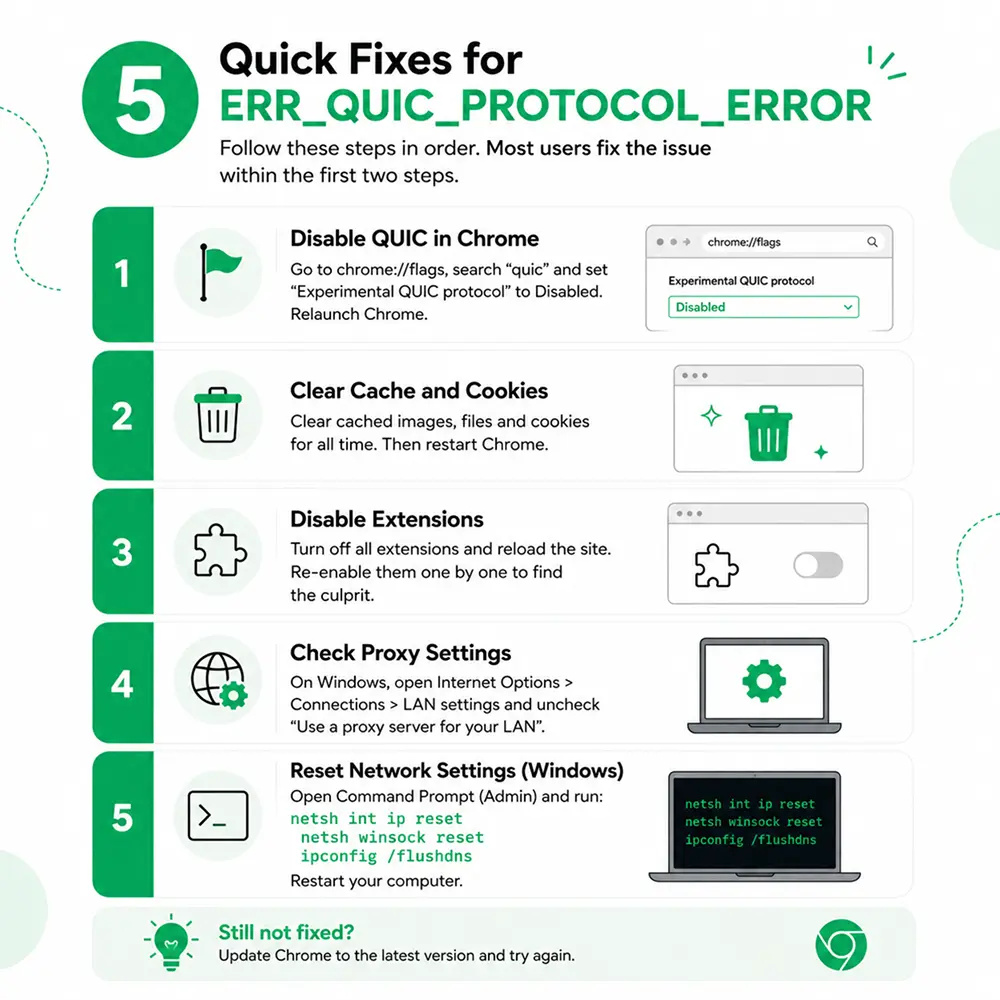
Work through these methods in order. Most people find a fix within the first two steps.
1. Disable QUIC in Chrome
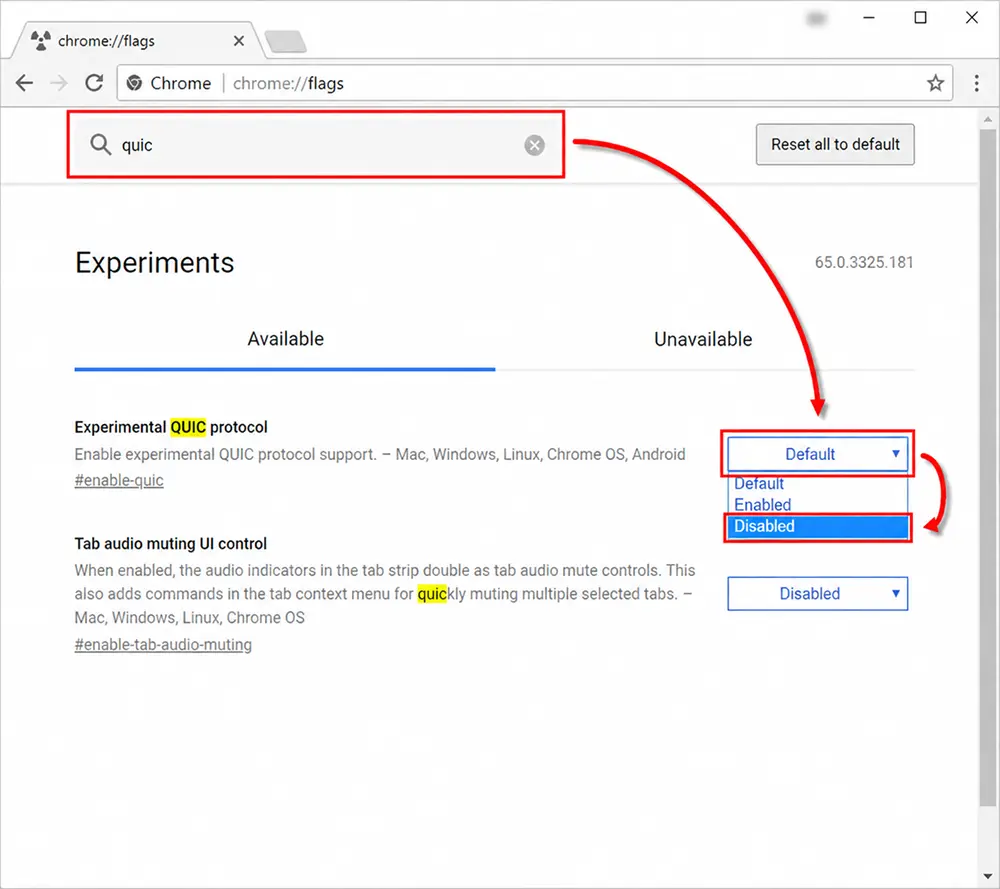
Open chrome://flags and search for quic. Set “Experimental QUIC protocol” to Disabled, then relaunch Chrome. This change removes QUIC from the connection process entirely, and Chrome falls back to standard HTTP, which resolves the error for most users.
2. Clear Cache and Cookies
Corrupted cache files often hold outdated connection data. Press Ctrl+Shift+Delete, set the time range to all time, and clear cached images, files, and cookies. Restart Chrome afterward and reload the page.
3. Disable Extensions
VPNs and ad blockers frequently interfere with QUIC traffic. Open chrome://extensions and turn every extension off, then reload the site. Re-enable extensions one at a time to find which one caused the conflict.
4. Check Proxy Settings
On Windows, open Control Panel, go to Internet Options, then Connections, then LAN settings. Uncheck “Use a proxy server for your LAN” unless you specifically need one, then restart your computer to apply the change.
5. Reset Network Settings on Windows
Open Command Prompt as an administrator and run these three commands: netsh int ip reset, then netsh winsock reset, then ipconfig /flushdns. Restart your computer afterward. This clears misconfigured network settings that sometimes block QUIC traffic without any visible warning.
6. Update Chrome
Go to Settings, then About Chrome, and let it install the latest version. Older builds sometimes carry QUIC bugs that get patched in later releases, so an update alone can clear the error.
ERR_QUIC_PROTOCOL_ERROR on One Website Only
Some users only see this error on one specific website while every other site loads fine. This pattern often points to that site’s SSL setup rather than the browser.
In one community discussion, a user traced the issue to a newly purchased domain where the SSL certificate had failed to install correctly on the first attempt.
Reinstalling the certificate resolved the QUIC error along with a related Firefox message about cipher mismatches.
If you manage the affected site, verify the certificate status before assuming the problem sits with visitor browsers. A related cipher failure is covered in Fluent Support’s guide on SSL cipher error.
Server Side Checks for Website Owners
If visitors keep reporting this error on your site, look beyond the browser. Confirm these settings:
- HTTP/3 support: Your web server needs HTTP/3 and QUIC configured correctly, since a broken setup causes failed handshakes for every visitor using QUIC.
- Firewall rules: Keep UDP port 443 open, since blocking it prevents QUIC connections from completing.
- CDN configuration: Services like Cloudflare need HTTP/3 enabled explicitly, or requests routed through the CDN may fail without warning.
- DNS records: Confirm your domain points to the correct server. Propagation problems can look identical to a QUIC failure. Fluent Support’s guide on DNS probe errors covers this in more detail.
Preventing the Error From Returning
A few habits reduce repeat occurrences:
- Keep Chrome updated: Regular updates patch protocol bugs before they affect browsing.
- Review extensions periodically: Remove ones you no longer use, since outdated extensions are common culprits.
- Monitor server logs: Site owners should watch for dropped QUIC handshakes and address them early.
- Test with checkers: Free tools can confirm whether your site correctly supports HTTP/3 and QUIC.
Wrapping Up
ERR_QUIC_PROTOCOL_ERROR looks intimidating but usually traces back to a local setting rather than a broken website. Disabling QUIC in Chrome flags fixes it for most visitors within seconds.
Website owners dealing with repeated reports should check server side HTTP/3 configuration and DNS records instead of assuming visitor error. A quick troubleshooting pass usually clears the issue for good.
Want a system that makes ticket handling this smooth? Fluent Support brings structure and clarity to every request so your team always knows exactly what to do next. See how it works.
FAQs
Does disabling QUIC slow down browsing?
No. Chrome falls back to HTTP/2, which most sites already support well. Any speed difference is too small to notice.
Is ERR_QUIC_PROTOCOL_ERROR a sign of malware?
Rarely. It almost always points to a network or browser configuration issue rather than an infection. Run a scan only if other symptoms appear alongside it.
Does this error affect mobile devices?
Yes, though less often since mobile networks handle UDP traffic differently. The same fixes, particularly clearing cache and checking VPN apps, apply on Android and iOS.
What do the different ERR_QUIC_PROTOCOL_ERROR messages mean?
Chrome sometimes adds detail such as connection reset, stream reset, or invalid flow control window. These all describe the same failed QUIC handshake, so the fixes above apply no matter which specific message shows up.

Related Articles
Fluent Support 2.4.7: Ticket Filters, 5x Faster Tickets and Smart Customer Search
Fluent Support 2.4.7 brings a Ticket Filters sidebar…Customer Success Best Practices for Small Teams
In this blog, we’ve discussed customer success in…



Add your first comment to this post