

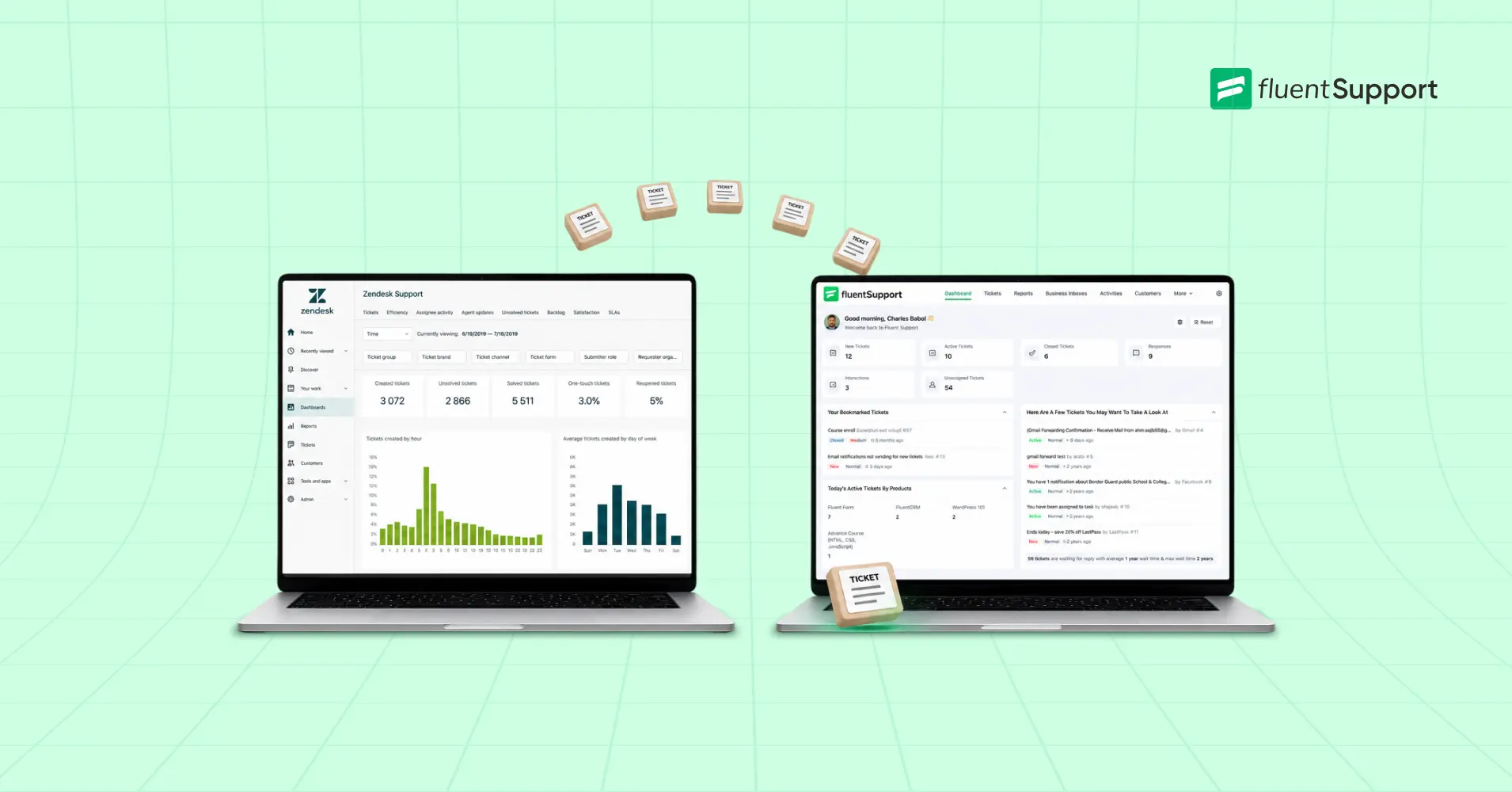
Zendesk Migration to Fluent Support: Move Every Ticket, Keep the History

By Md. Ariful Basher
June 8, 2026
Last Modified: June 8, 2026


Everybody treats Zendesk as the safe default for support. Stay put, keep your history, don’t rock the boat. But why?
Run the numbers first. A five-agent team pays Zendesk around $1,140 a year. The same team on Fluent Support pays $129 a year, flat, with unlimited agents and every feature included (see it in the pricing calculator). That gap is the whole reason this conversation keeps happening.
Price is only half of it. Fluent Support is self-hosted, so your ticket data sits in your own WordPress database instead of on someone else’s cloud. You own it outright. The per-seat meter stops running, and there’s no separate SaaS login to manage. If your store already runs on WordPress, support now lives in the same dashboard as the rest of your stack.
So the real worry isn’t whether to move. It’s whether moving costs you your history. It doesn’t. Here’s what actually happens: a native importer pulls your existing Zendesk tickets straight in over an API connection. Let’s walk through it.
TL;DR
- A Zendesk migration to Fluent Support runs over an API connection, no CSV exports needed.
- You need three things from Zendesk: your domain URL, your account email, and an API token.
- Tickets, replies, agent info, and customer details come across automatically. A 2026 update added archived tickets too.
- Knowledge base articles, custom fields, and side conversations sit outside the native importer and need extra handling.
- Test on a small batch and pause your automations before the full transfer.
- Why switch at all: flat pricing, self-hosted data ownership, and a WordPress-native dashboard.
What a Zendesk migration actually moves
Before you click anything, know what lands on its own and what needs a hand. This is the single most common source of post-migration surprise.
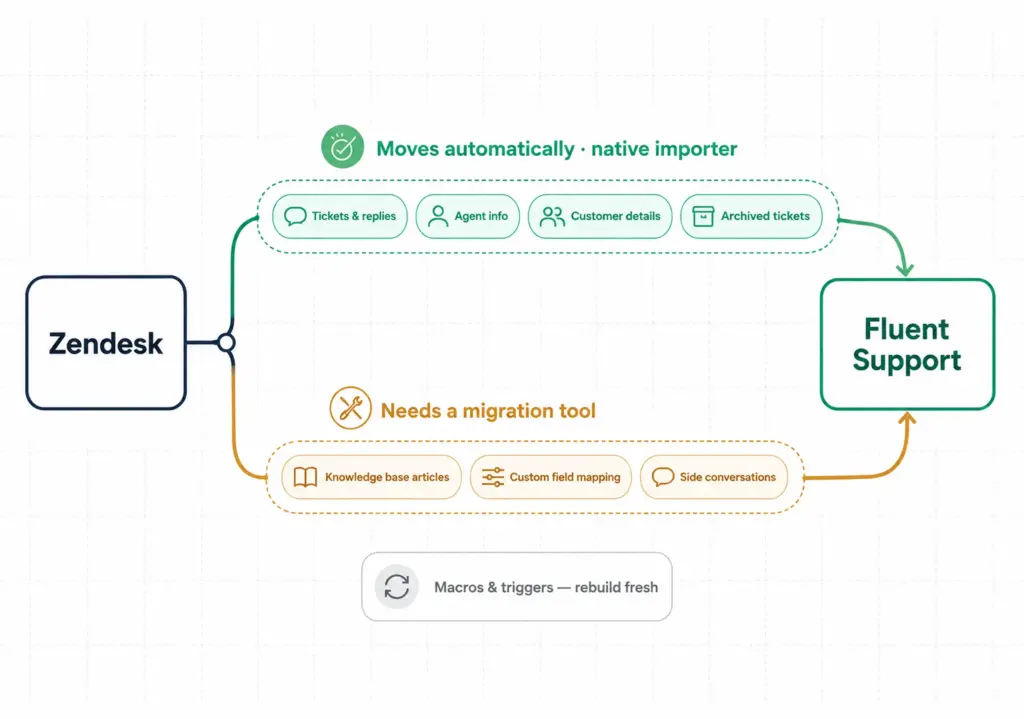
The native Fluent Support importer brings your tickets and their full conversation threads, your basic agent information, and your customer details, so each conversation arrives with its context intact (Fluent Support migration). A 2026 release added the ability to collect archived tickets, so older history isn’t left behind (changelog).
What it doesn’t handle automatically: knowledge base articles, deeply custom field mappings, and side conversations. Those sit outside the native importer and need extra handling. Macros and triggers don’t transfer at all, by design. You rebuild those fresh, which is usually a blessing given how many dead automations pile up over the years.
The Zendesk migration, step by step
The native route has two halves: grab your credentials from Zendesk, then run the import from WordPress. Five minutes, start to finish.
Step 1: Open the Ticket Importer
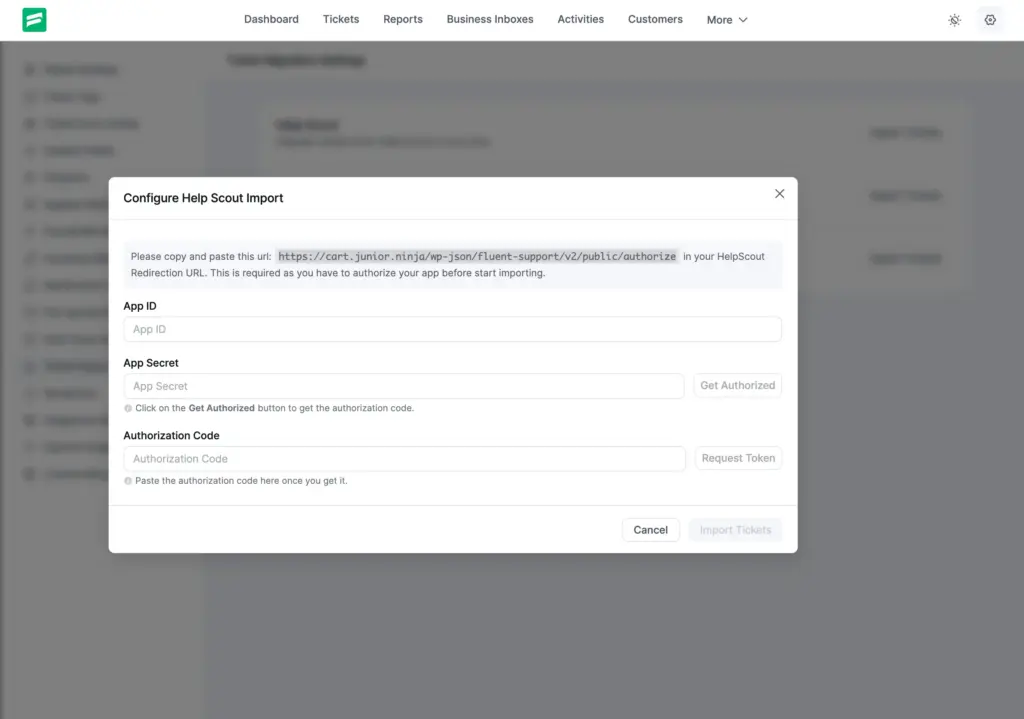
In your Fluent Support dashboard, go to Settings, then Ticket Importer in the left sidebar. Find Zendesk and click Import Tickets. A popup asks for three things: your Zendesk Domain, Email Address, and API Key. Leave it open.
Step 2: Get your Zendesk API token
Log in to Zendesk. In the sidebar, find API Tokens and click Get Started. Add a description, click Save, and copy the token the moment it appears. Zendesk shows it once. Grab your domain URL from the address bar while you’re there.
Step 3: Authorize and import
Back in the Fluent Support popup, paste in your domain, email, and API key. Click Import Tickets. The import runs in the background and notifies you when it’s done. You’ll see every imported ticket logged with its migration date and time.
Step 4: Spot-check before you trust it
Open a handful of migrated tickets. Confirm threads, timestamps, and customer details survived the trip, and check a few of the oldest archived ones. Five minutes now beats finding a gap mid-conversation later.
When the native importer isn’t enough
Got a sprawling knowledge base or a maze of custom fields that have to land in exact places? That’s the edge of any native importer.
The importer covers tickets, replies, agents, and customers. Knowledge base articles and heavy custom-field structures sit outside it. The honest move here is to talk to the Fluent Support team about your setup before you start, since the right path depends on how much custom structure you’re carrying. Whatever route you land on, test it on a small batch first and confirm the mapping before you move everything across.
Before and after: the parts people skip
Two short habits separate a clean migration from a messy one.
Before you import, audit your data and pause your automations on both platforms. This is where things break. Skip the pause and imported tickets fire a wave of outdated “your ticket was updated” emails at customers who closed those threads months ago. Nothing burns goodwill faster.
After you import, run a delta sync to catch tickets created during the transfer, then pause your old Zendesk channels before going public so you don’t get duplicates in two systems. Point your forms and email piping at the new home, and keep an eye on first response time for the first week while the team learns the layout.
Wrapping up
A Zendesk migration isn’t the cliff edge the renewal invoice makes it feel like. Pull your credentials, clean your data, run a demo, then let the importer do its job.
Teams that move don’t just cut a bill. They get their data back on their own server, and a bit of the excitement that comes with a fresh, uncluttered setup (support data backs how much a smoother setup lifts both agent and customer sentiment).
The data was never the hard part. The order was.
Start off with a powerful ticketing system that delivers smooth collaboration right out of the box.
Related Articles
Fluent Support 2.4.7: Ticket Filters, 5x Faster Tickets and Smart Customer Search
Fluent Support 2.4.7 brings a Ticket Filters sidebar…Customer Success Best Practices for Small Teams
In this blog, we’ve discussed customer success in…


Add your first comment to this post